Deposits from Zoho retainer invoices
Audience: Shop owner, staff who issue invoices Time: 3 minutes
When a customer pays a deposit before the job (for example 30% upfront for a POS installation), you can e-invoice the deposit when you receive it and then e-invoice the final bill with the deposit deducted. In Zoho Books the deposit is a retainer invoice.
Watch the full flow above (a sandbox demo with example data), or follow the steps below.
1. Switch on retainer invoices in Zoho
If Retainer Invoices is missing under Sales, open Settings > Setup & Configurations > General, tick Retainer Invoices in the modules list and Save.
2. Create and submit the retainer invoice
Go to Sales > Retainer Invoices > + New, enter the deposit (for example "Deposit Pemasangan Sistem POS", RM500.00) and send it.
Open it and open the envoice.my widget. The pre-submit check shows a reminder, Ensure items are non-refundable: submit only if the deposit is non-refundable, because once filed it is an e-invoice for money received.
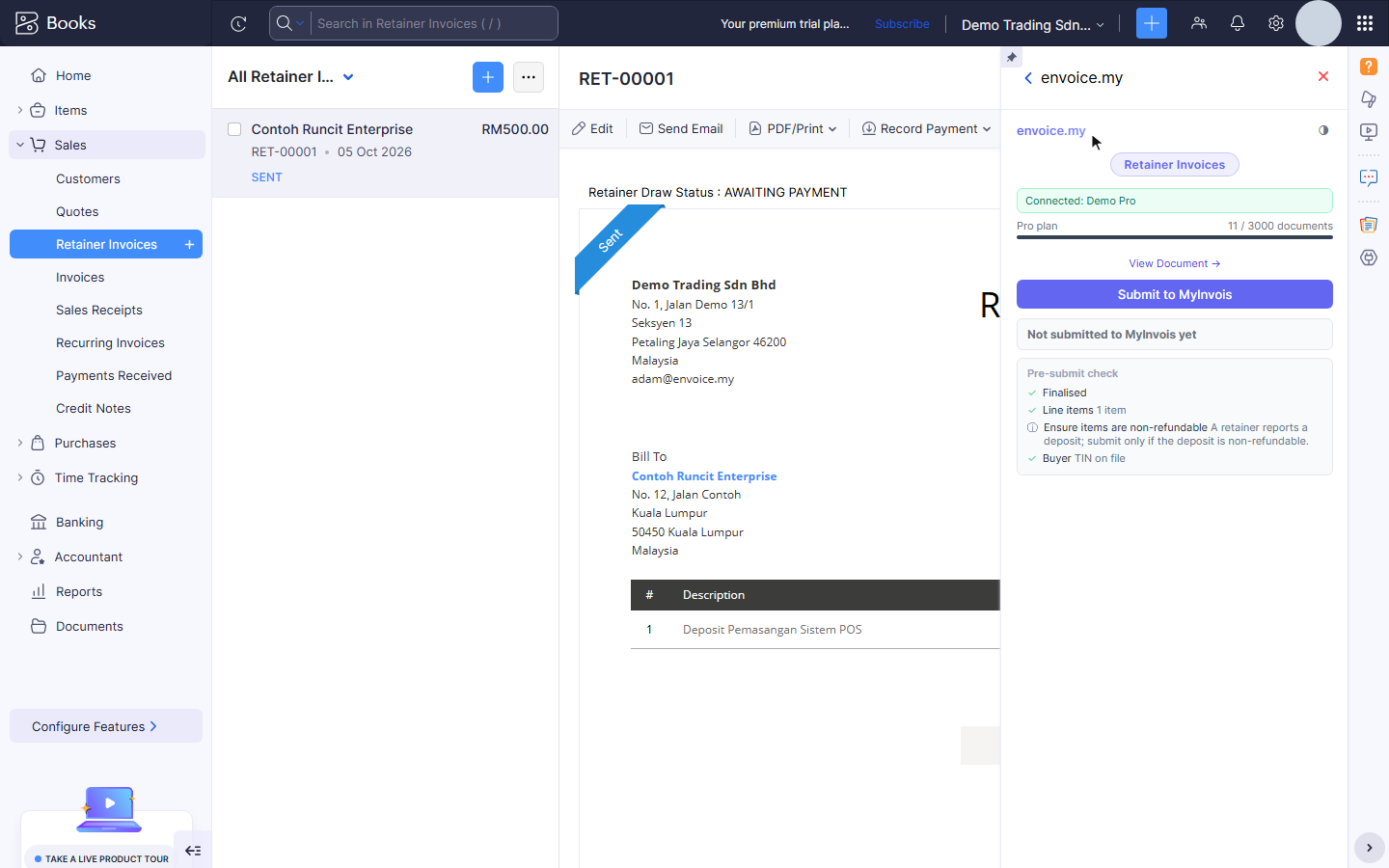
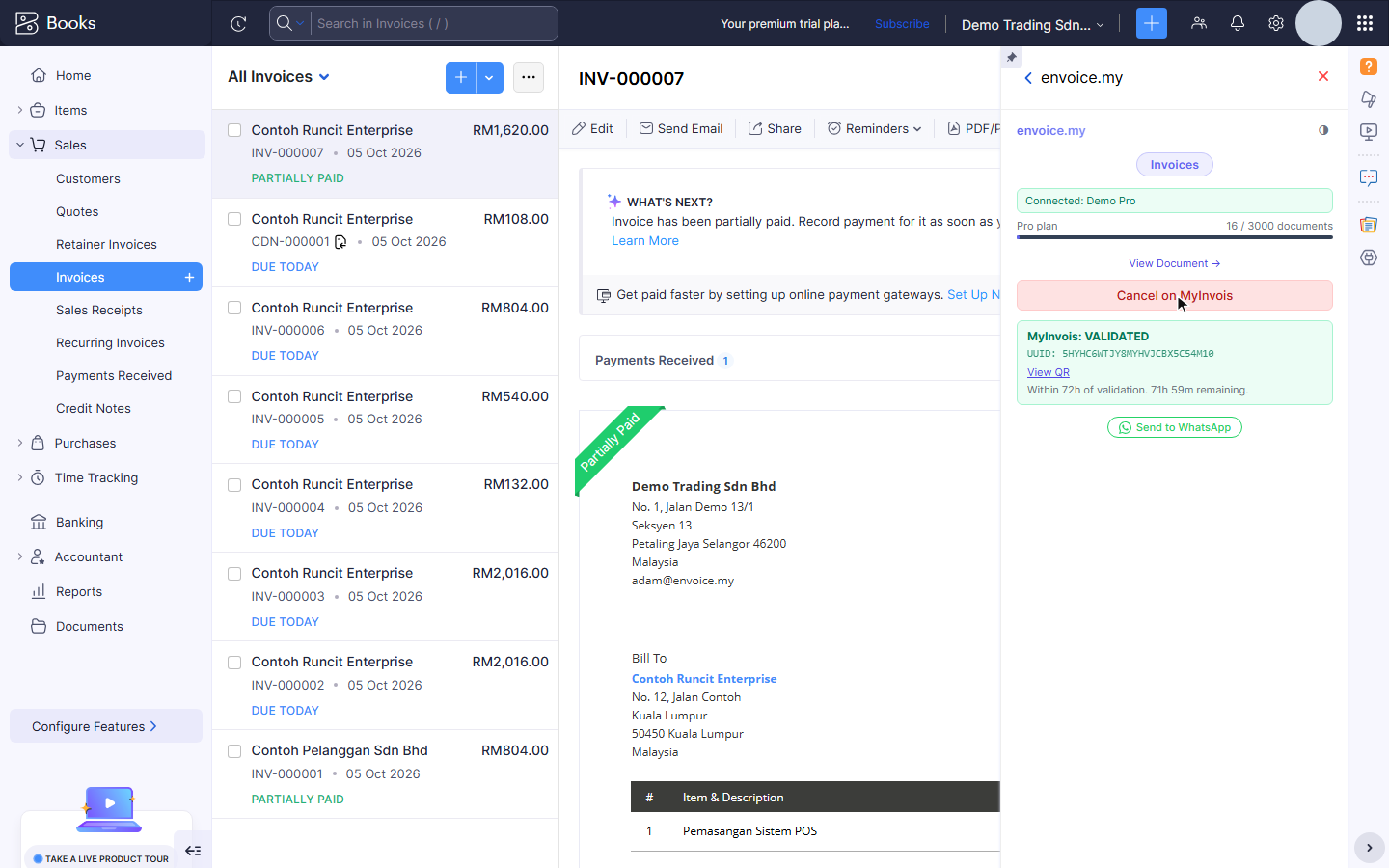
Click Submit to MyInvois. envoice files the deposit as an invoice (document type 01). The widget shows MyInvois: VALIDATED with its UUID.
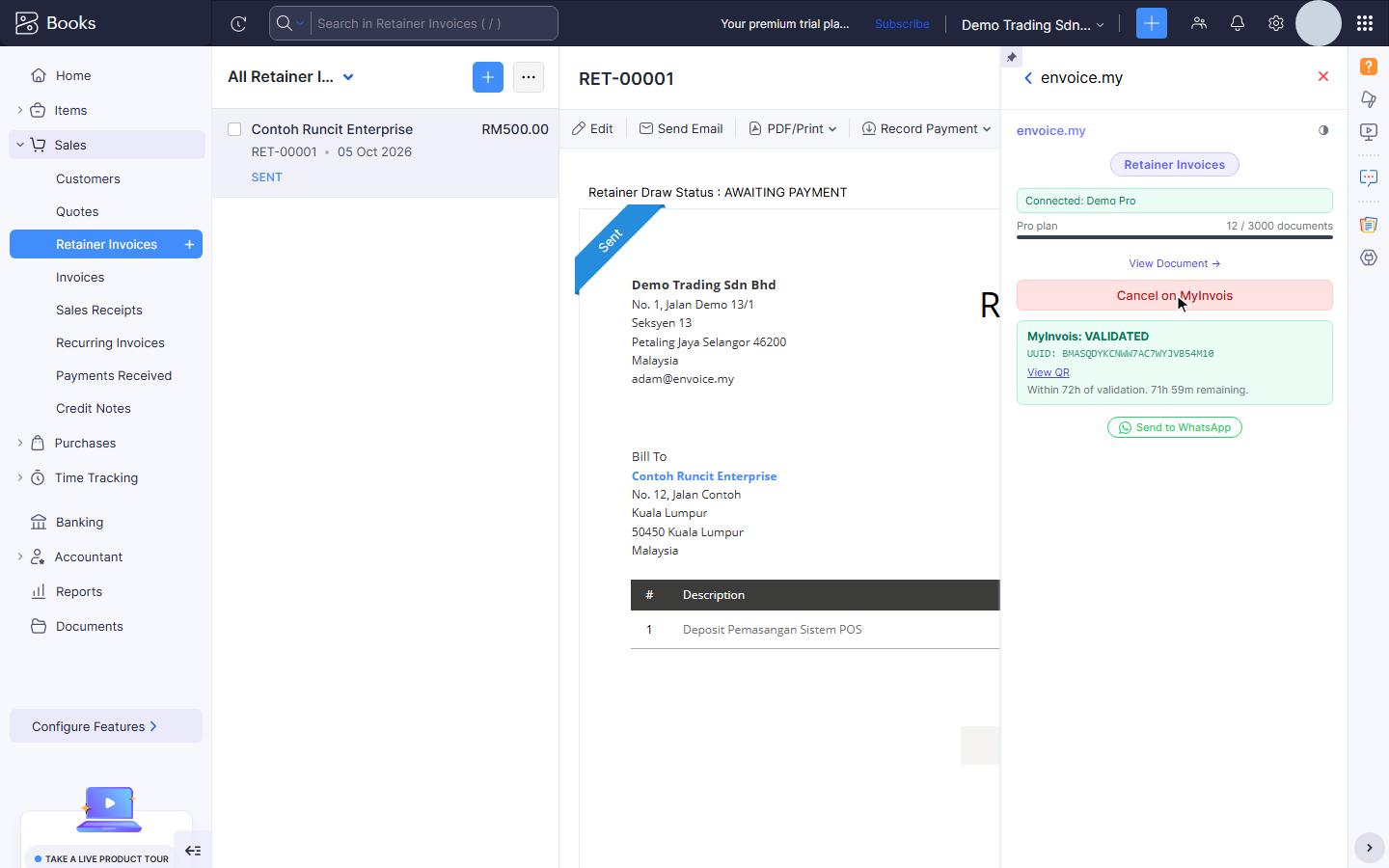
3. Record the payment
When the customer pays the deposit, record the payment on the retainer invoice in Zoho as usual (Record Payment). Zoho then holds it as an available retainer for that customer.
4. Apply the deposit on the final invoice
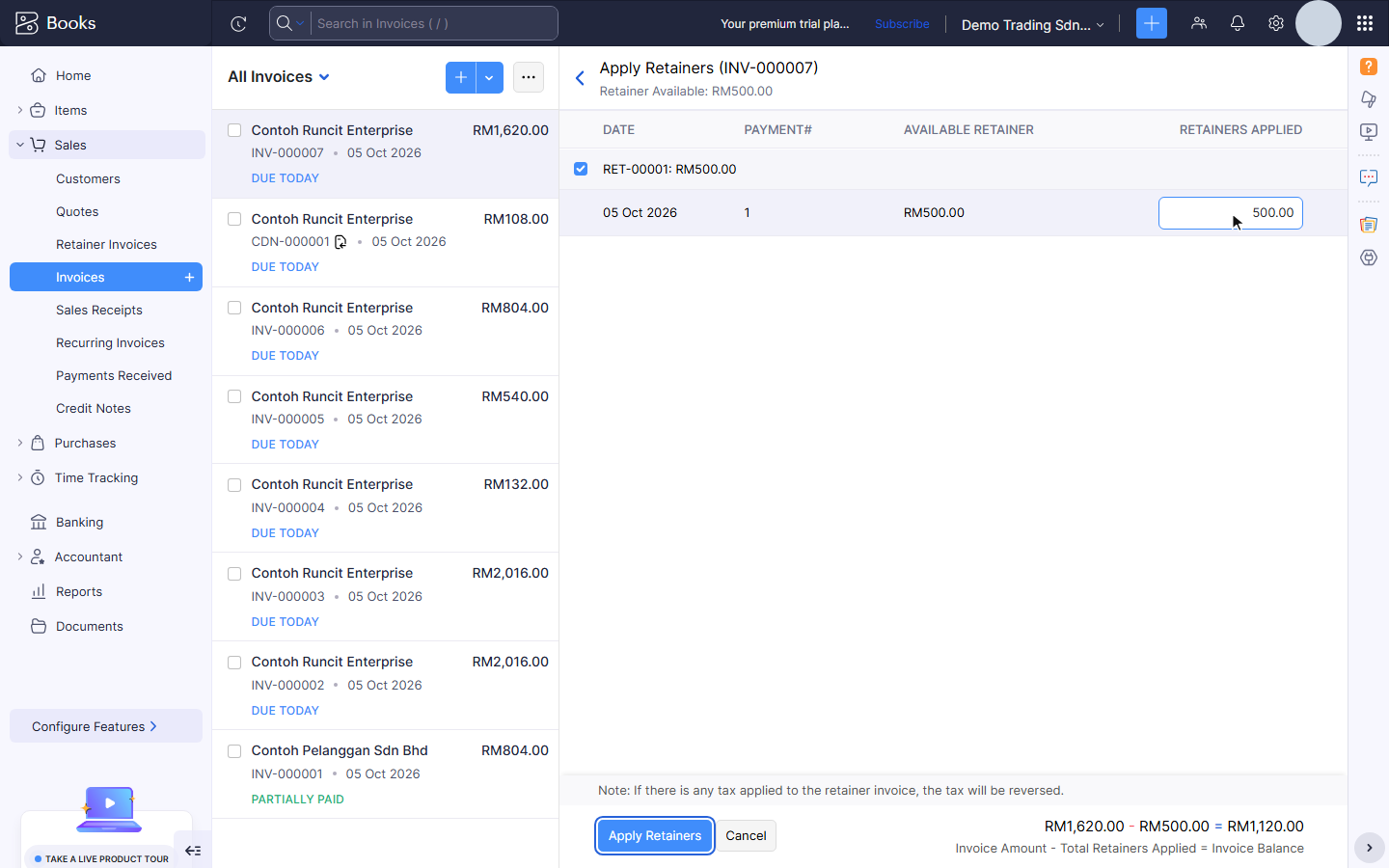
Create the final invoice for the full job. On the invoice, click Apply Now next to the available retainers. On Apply Retainers, tick the retainer, enter the amount under Retainers Applied, and click Apply Retainers. Zoho shows the sum, for example RM1,620.00 minus RM500.00 leaves RM1,120.00.
5. Submit the final invoice
Open the final invoice and the widget. The pre-submit check confirms Applied retainer with the retainer number.
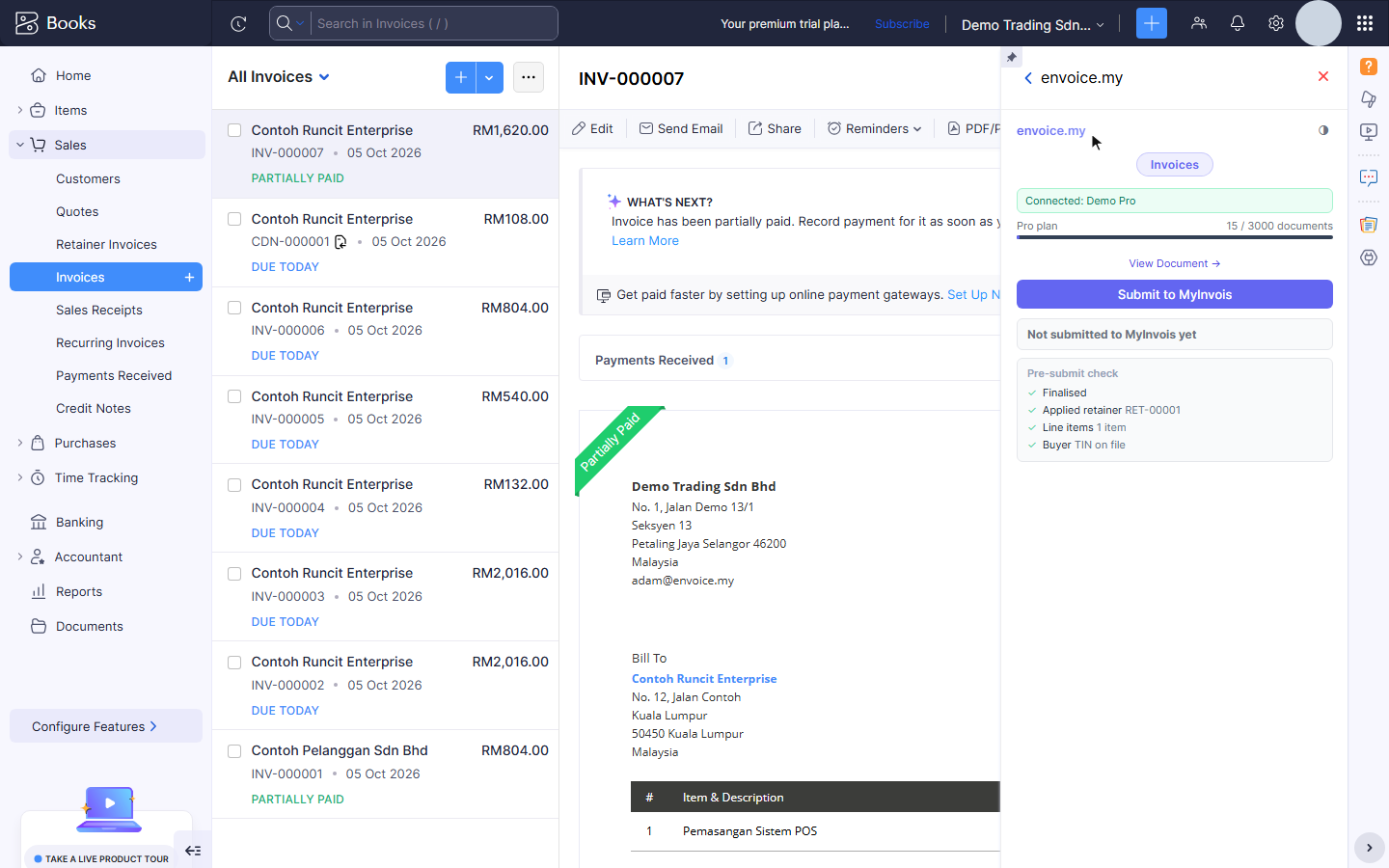
Click Submit to MyInvois. envoice files the full invoice with the deposit already paid deducted, so the amount payable on the e-invoice is the balance. The buyer is not charged for the deposit twice.
Related