Submit several Zoho invoices at once
Audience: Shop owner, staff who issue invoices Time: 2 minutes for a batch
Instead of opening each invoice, you can tick several invoices in Zoho's list and submit them to MyInvois in one go from the envoice widget.
Watch the full flow above (a sandbox demo with example data), or follow the steps below.
1. Tick the invoices
In Zoho Books, go to Sales > Invoices and open any invoice so the list shows on the left. Tick two or more invoices in that list. Zoho shows how many are Selected at the top.
2. Open the envoice widget
Open the envoice.my widget from the right sidebar (the All Sidebar Widgets button, then envoice.my). With several invoices ticked, the widget switches to bulk mode:
- Submit Selected to MyInvois, with a count such as "3 invoices to submit";
- a Pre-submit check listing each ticked invoice, for example "Pre-submit check (3)". Click the x next to an invoice to leave it out of this batch.
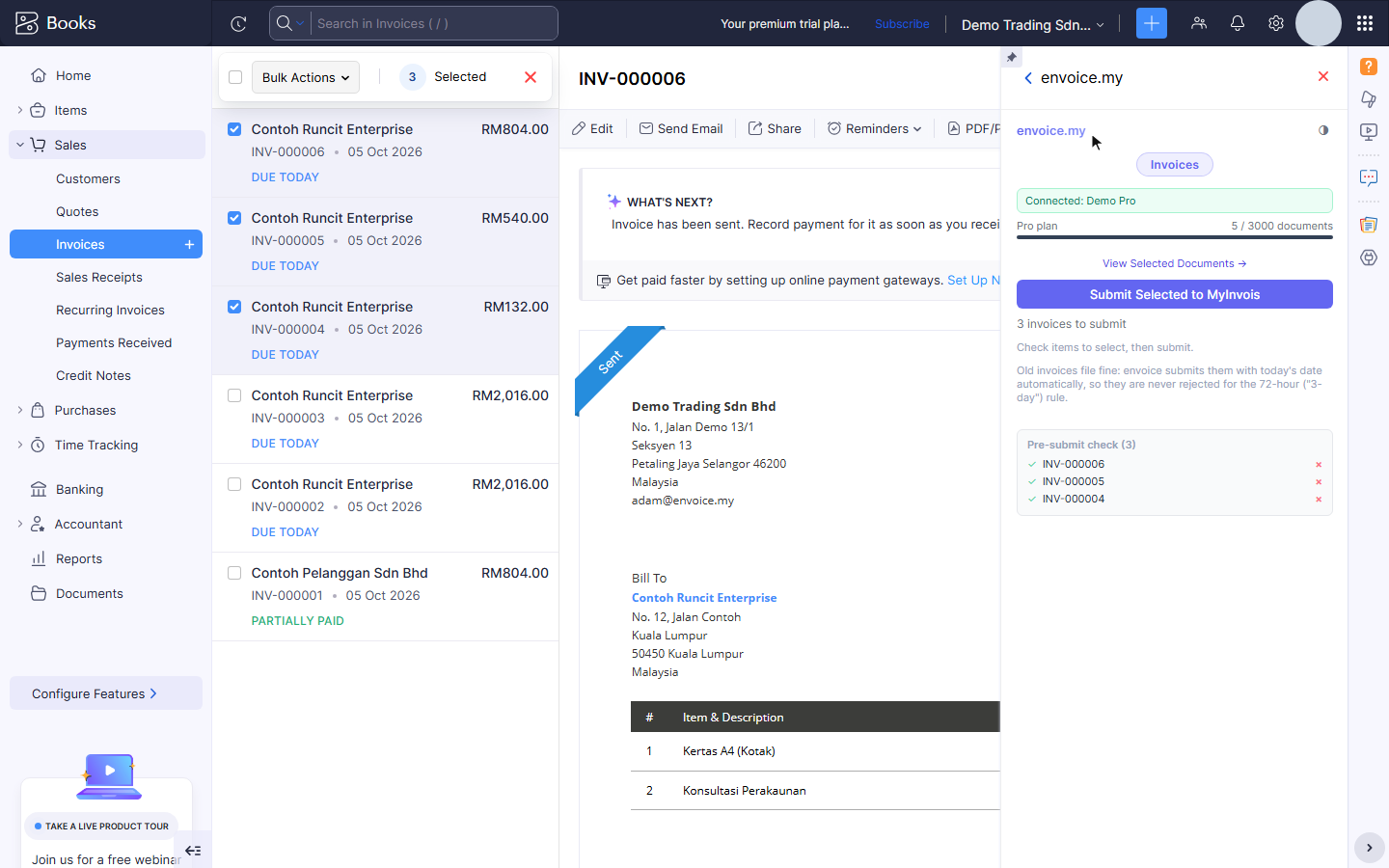
Old invoices are fine: envoice submits them with today's date, so they are not rejected under the 72-hour rule.
3. Submit Selected to MyInvois
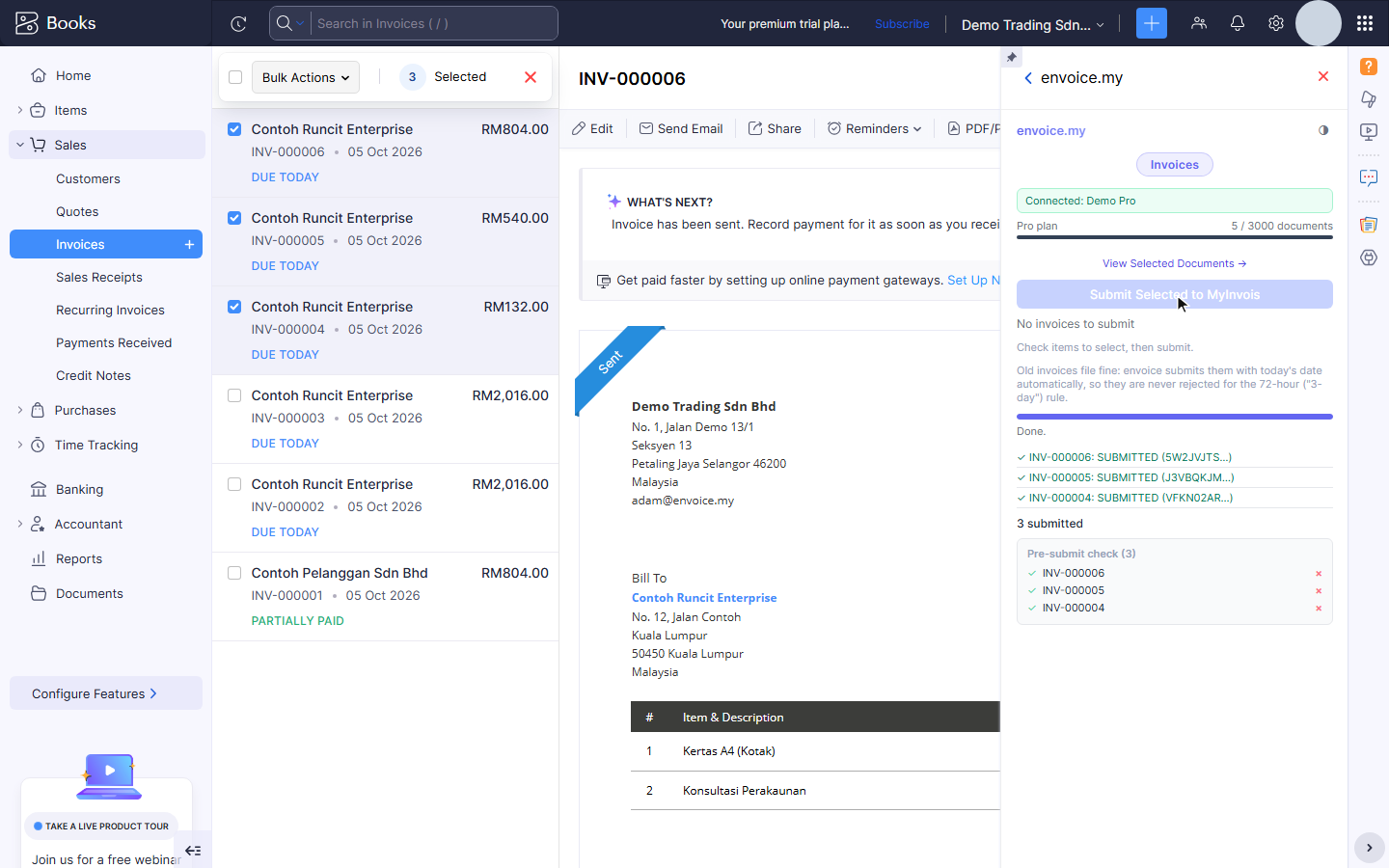
Click Submit Selected to MyInvois. A progress bar runs, then the widget shows one result line per invoice, for example "INV-000006: SUBMITTED", and a total such as "3 submitted".
4. Check they validated
SUBMITTED means LHDN received the invoice and is still checking it. It usually changes to VALIDATED within a few minutes. Open an invoice to see its status in the widget, or check them all on Zoho submission history.
If one is rejected, the others are not affected. Open the rejected invoice, fix the cause in Zoho and submit it again on its own: see Why was my document rejected?.
Good to know
- Only finalised (sent) invoices are submitted. Drafts are skipped.
- An invoice that already has a validated e-invoice is not filed twice.
Related