Zoho submission history
Audience: Shop owner, staff who issue invoices Time: 2 minutes
The Submission History page lists every document your Zoho organization has submitted to MyInvois through envoice, with its status and UUID. Use it to check what went through, find a rejected document, or cancel one without opening it in Zoho.
1. Open Submission History
In Zoho Books, open the envoice.my widget and click Submission History. The page opens in a new window.
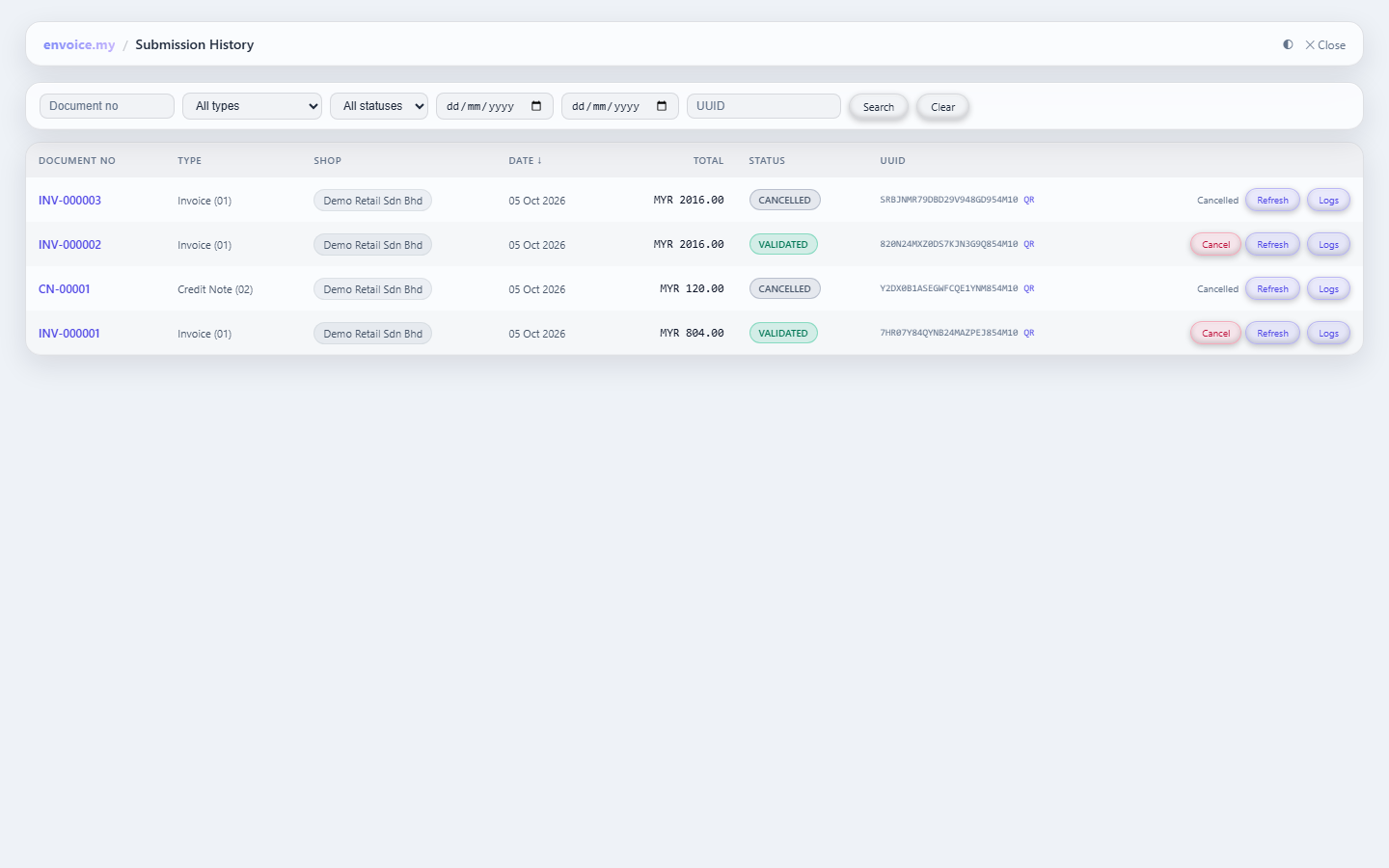
Each row shows the document number, type (Invoice 01, Credit Note 02 and so on), the envoice shop it was filed under, the date, the total in MYR, the status and the UUID with a QR link.
2. Search and filter
Use the bar at the top to narrow the list, then click Search. Clear resets it.
- Document no: the Zoho number, for example
INV-000002. - All types: invoice, credit note, debit note, refund note, and the self-billed types.
- All statuses: Validated, Submitted, Rejected, Failed or Cancelled.
- From and to dates: a date range.
- UUID: paste a MyInvois UUID to find its document.
If the organization files to more than one envoice shop, there is also an All shops filter.
3. Act on a row
- Cancel: cancel a validated document on MyInvois. You give a reason of at least 5 characters, as in the widget. Only shown within the 72-hour window; a cancelled row shows "Cancelled" instead. See Cancel a Zoho invoice on MyInvois.
- Refresh: ask LHDN for the latest status of the document, for example when one is still Submitted.
- Logs: the events for that document with their times, and the error message if it failed or was rejected.
Click a document number to see its details: the buyer, the totals, the UUID, Refresh status, and View on MyInvois for a validated document.
Related