Set LHDN fields on Zoho contacts and items
Audience: Shop owner (Admin) Time: 5 minutes, once per customer and item
LHDN needs to know who the buyer is and what each line is. When you connect Zoho, envoice adds LHDN fields to your Zoho contacts and items. Fill them once and every invoice you submit from Zoho picks them up.
Watch where the fields are, or follow the steps below.
1. Buyer details on a contact
In Zoho Books, go to Sales > Customers, open the customer and click Edit. Open the Custom Fields tab.
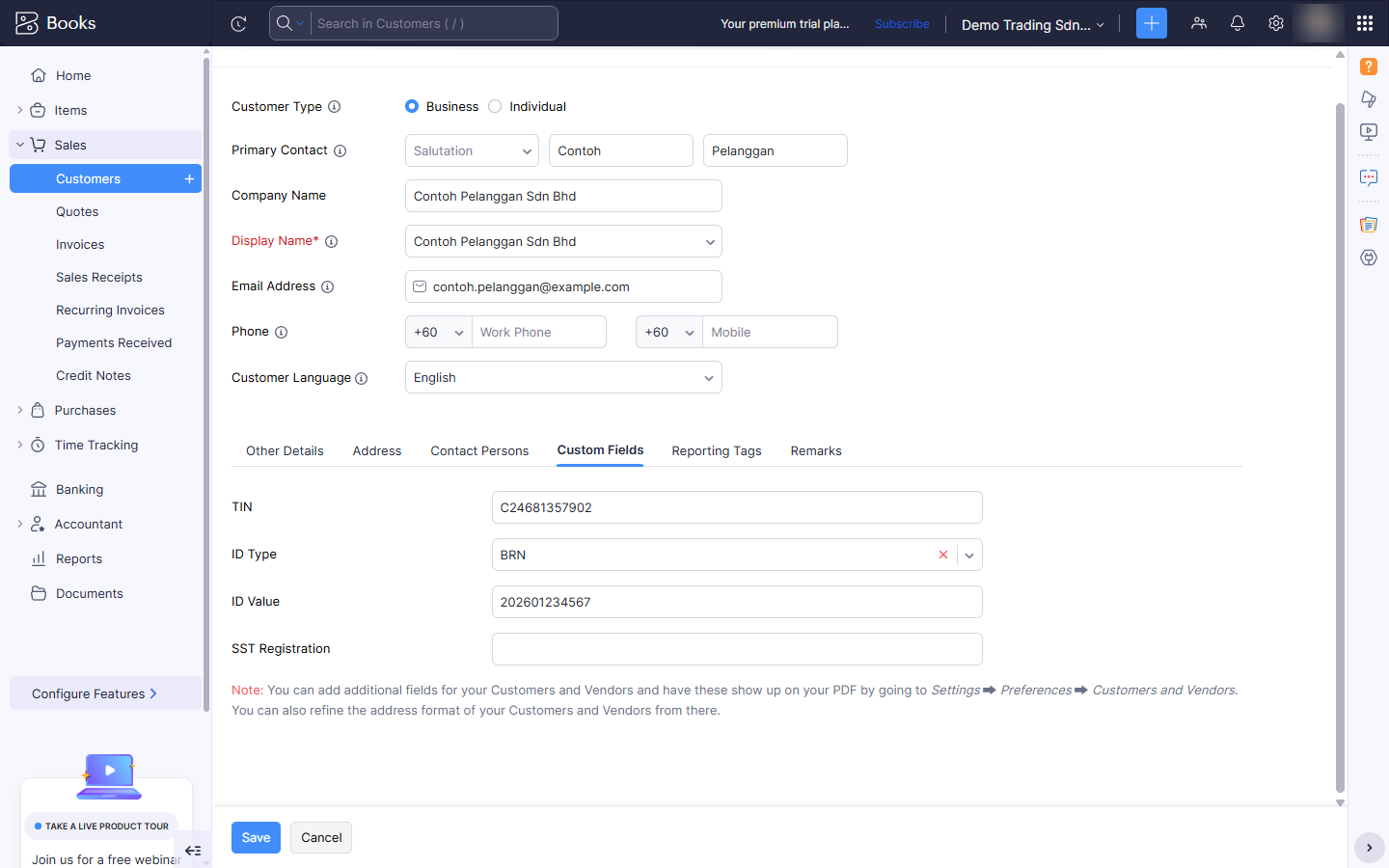
| Field | What to enter |
|---|---|
| TIN | The buyer's tax identification number from LHDN, for example C24681357902 for a company. |
| ID Type | BRN for a business (SSM number), NRIC for a Malaysian individual, PASSPORT or ARMY where that applies. |
| ID Value | The number for that ID type, for example the 12-digit SSM registration number. |
| SST Registration | The buyer's SST registration number, if they have one. Leave it empty otherwise. |
Click Save.
LHDN checks that the TIN and the ID belong to the same taxpayer. A TIN that does not match the BRN is rejected. See Rejected: buyer TIN or BRN does not match.
2. Walk-in buyers: General Public TIN
For a customer who does not give you their details (a walk-in or cash buyer), use LHDN's General Public TIN:
- TIN:
EI00000000010 - ID Type: BRN
- ID Value:
NA
If you leave the TIN empty, envoice submits the buyer as general public for you and the widget's pre-submit check says so. See What do I do about walk-in customers?.
3. Do not know the buyer's TIN?
Fill ID Type and ID Value on the contact and save. Then open the contact (not the edit form) and open the envoice.my widget in the right sidebar. It shows Lookup TIN from LHDN.
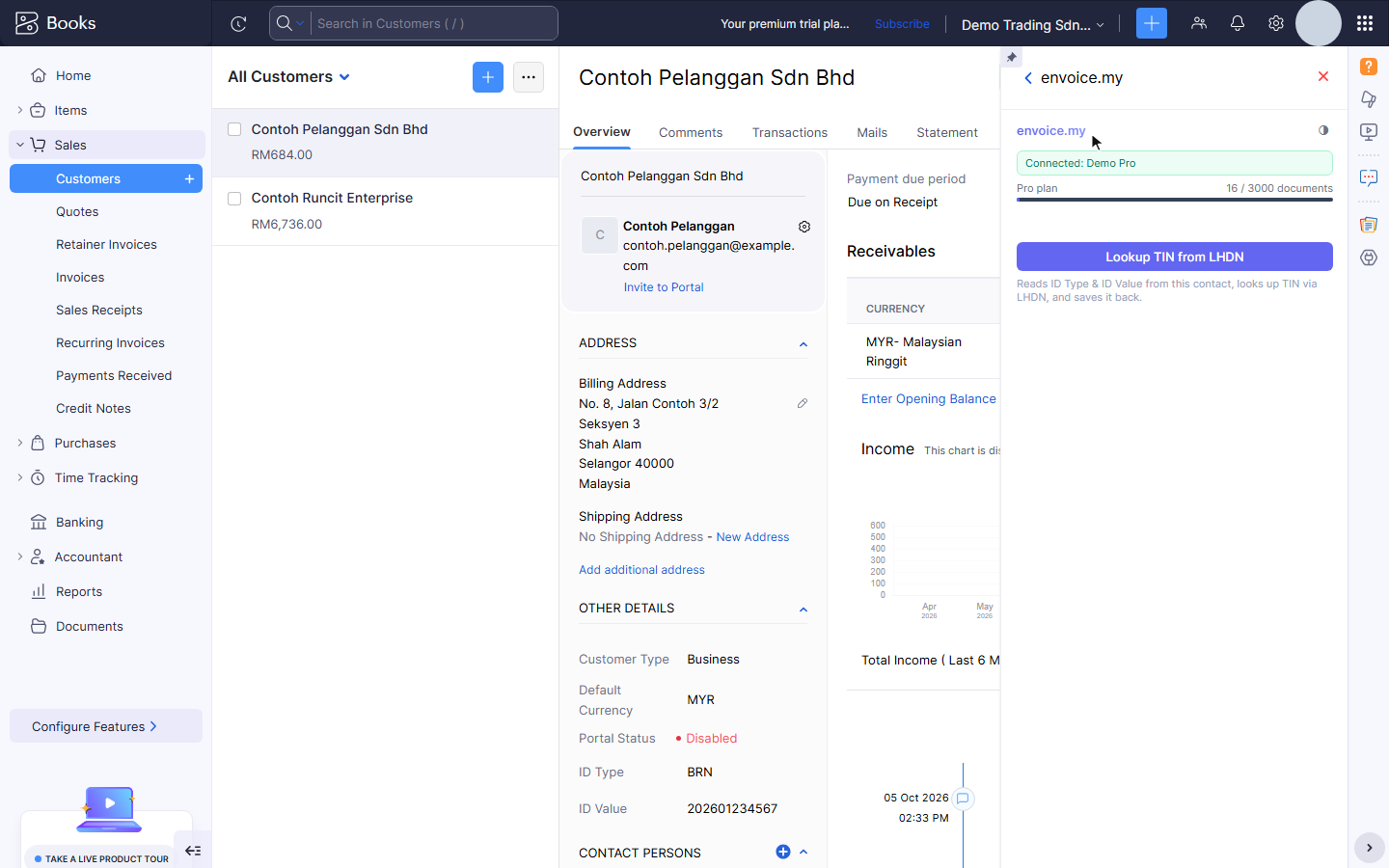
Click it. envoice reads the ID Type and ID Value from the contact, asks LHDN for the matching TIN, and saves it into the contact's TIN field, so you do not have to ask the customer for it.
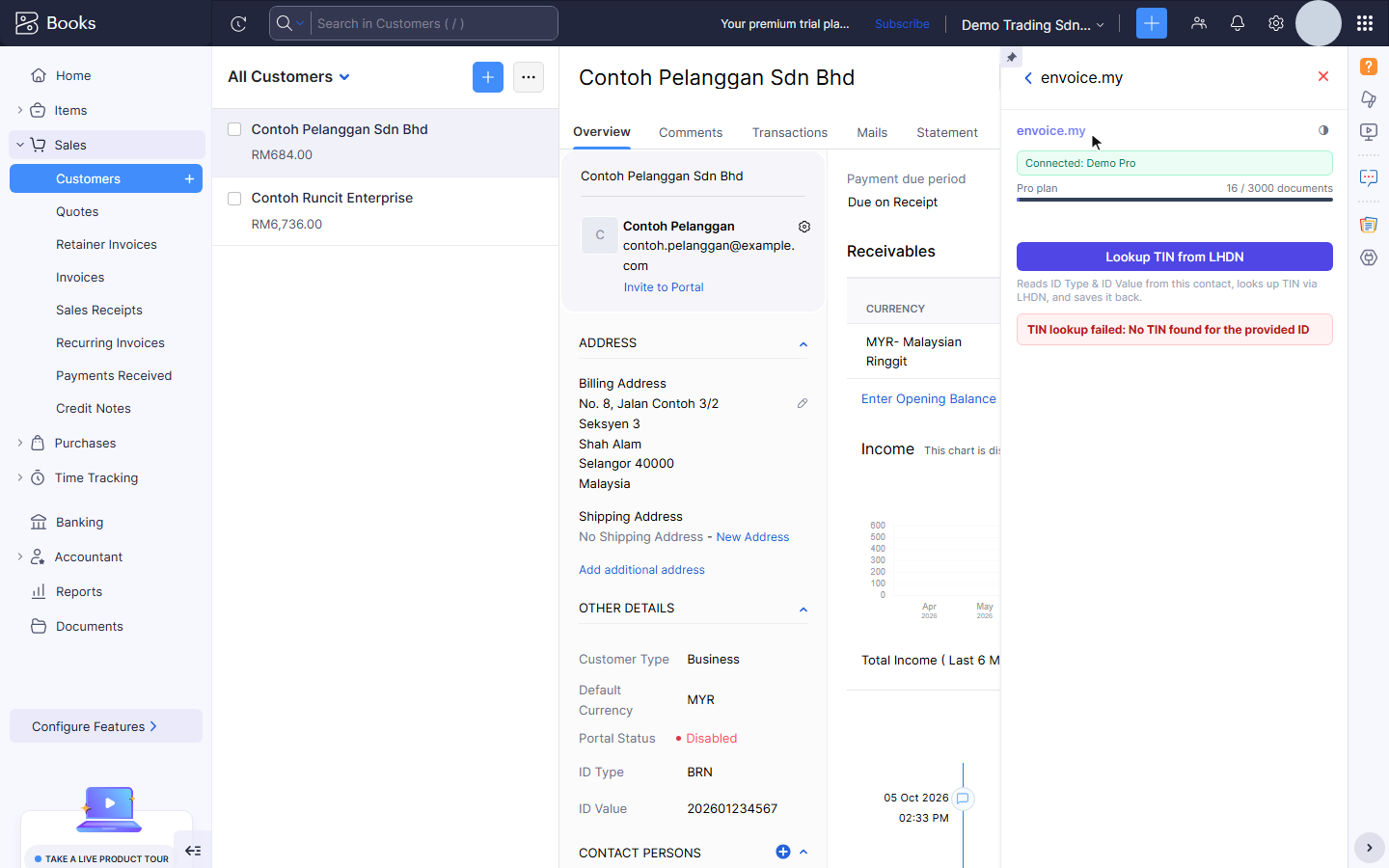
If LHDN has no taxpayer for that ID, the widget says TIN lookup failed: No TIN found for the provided ID and nothing is saved. Check the ID Type and ID Value against the customer's SSM certificate or MyKad. If they are right and there is still no match, ask the customer for their TIN, or use the General Public TIN for a walk-in sale.
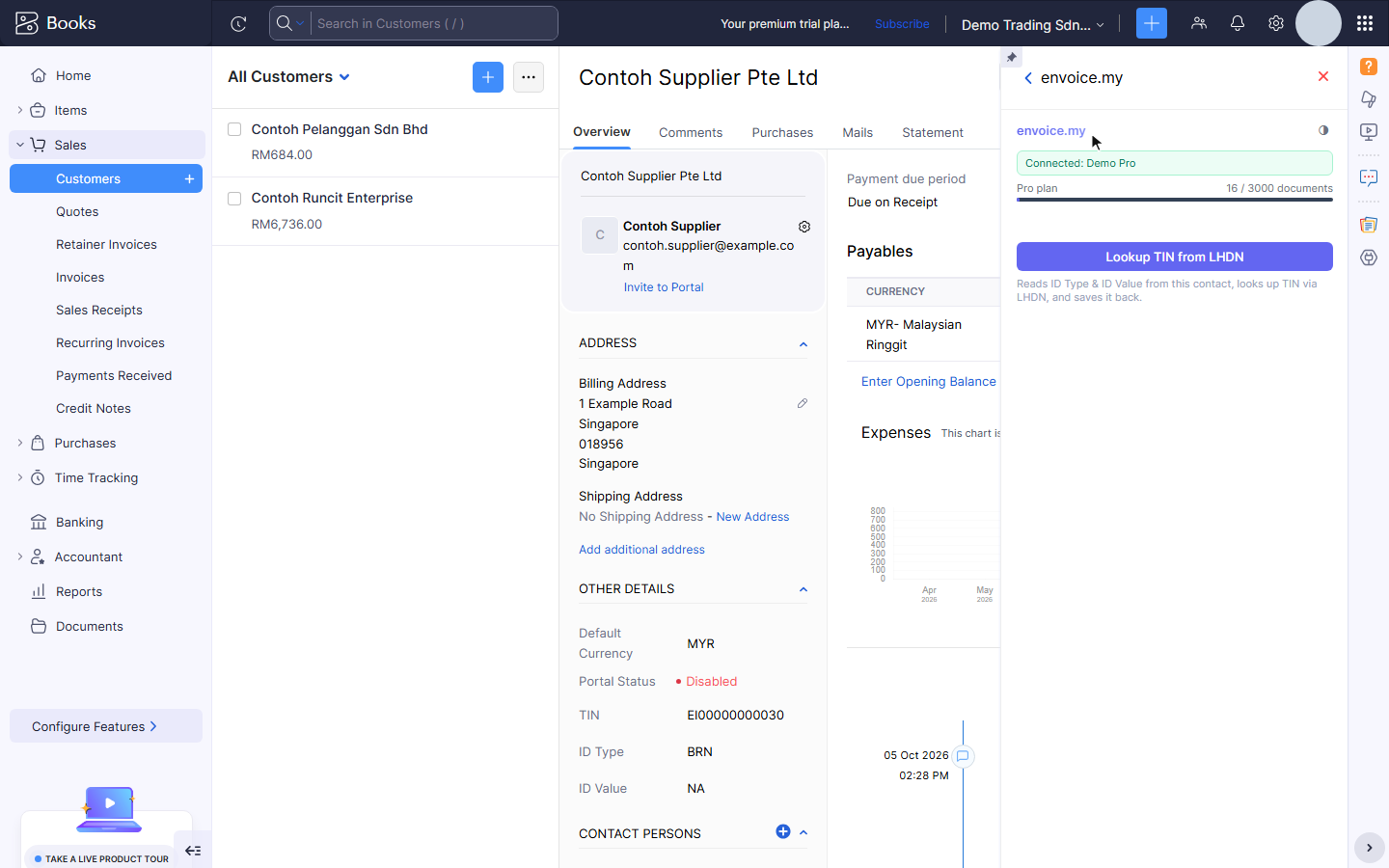
The same button is on your vendors, for the supplier's TIN on self-billed invoices (see Self-billed invoices from Zoho).
4. Classification and tax on an item
Go to Items, open the item and click Edit. Scroll down to Additional Information.
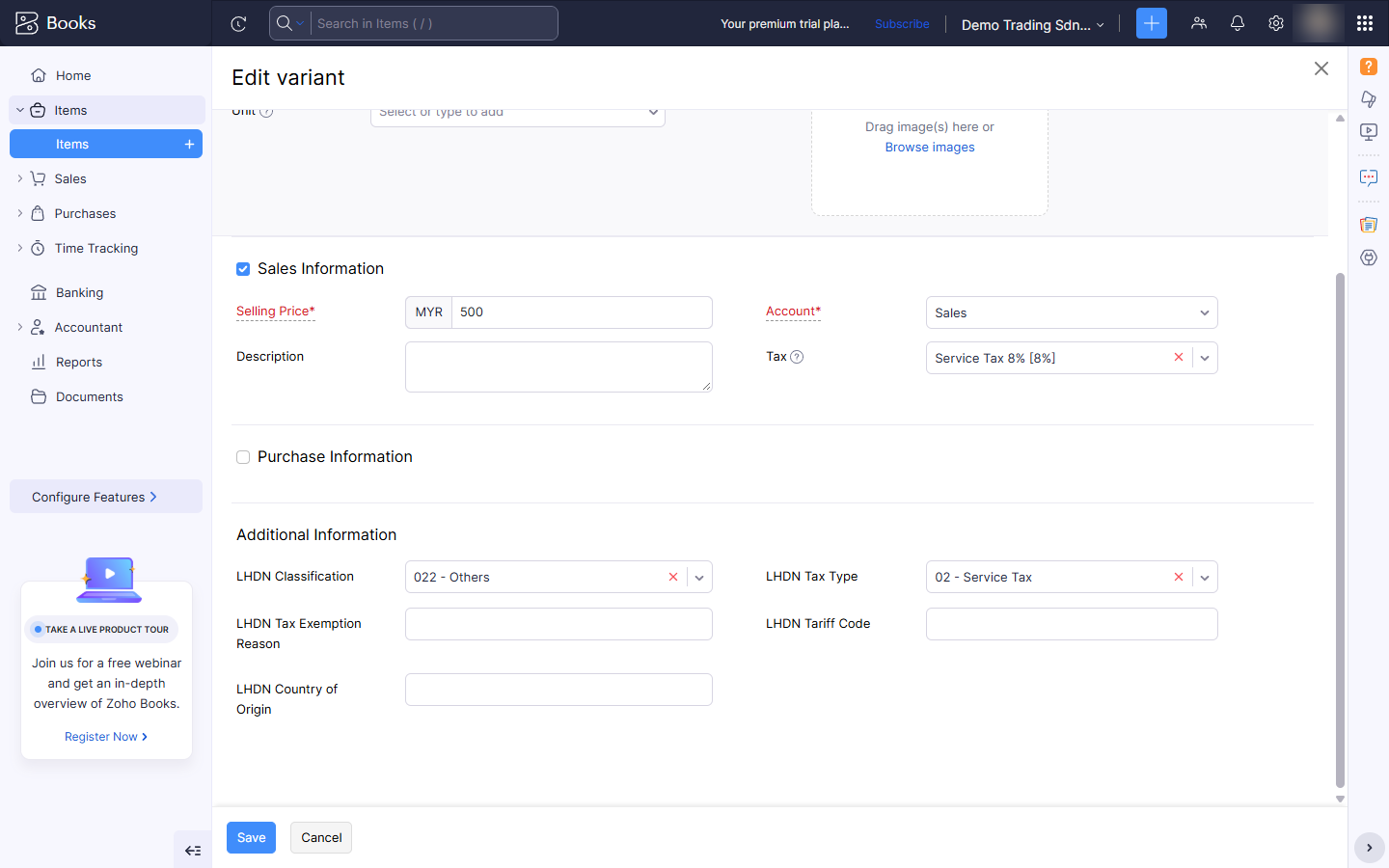
| Field | What to enter |
|---|---|
| LHDN Classification | The LHDN classification code for what you sell. 022 - Others fits most general goods and services. |
| LHDN Tax Type | The tax on this item, for example 01 - Sales Tax, 02 - Service Tax, 06 - Not Applicable or E - Tax exemption. |
| LHDN Tax Exemption Reason | Required when the tax type is E: why the item is exempt. |
| LHDN Tariff Code | Optional. The customs tariff code, for imported or exported goods. |
| LHDN Country of Origin | Optional. Where imported goods were made. |
Click Save. envoice reads these from the item for every invoice line, even when Zoho does not copy them onto the invoice. An item with no classification is submitted as 022.
Set the item's own Zoho Tax (for example Service Tax 8%) as usual. That decides the SST amount on the invoice; the LHDN Tax Type tells MyInvois which kind of tax it is.
Related