Self-billed invoices from Zoho
Audience: Shop owner, staff who record purchases Time: 5 minutes to set up, then 1 minute per document
Some sellers cannot issue you an e-invoice: a foreign supplier, or an individual who is not in business (a freelancer, a part-time agent). LHDN expects you, the buyer, to issue a self-billed invoice on their behalf. In Zoho Books you record it as a self-billed bill and submit it from the envoice widget.
Watch the full flow above (a sandbox demo with example data), or follow the steps below.
1. Switch on the self-billed modules in Zoho
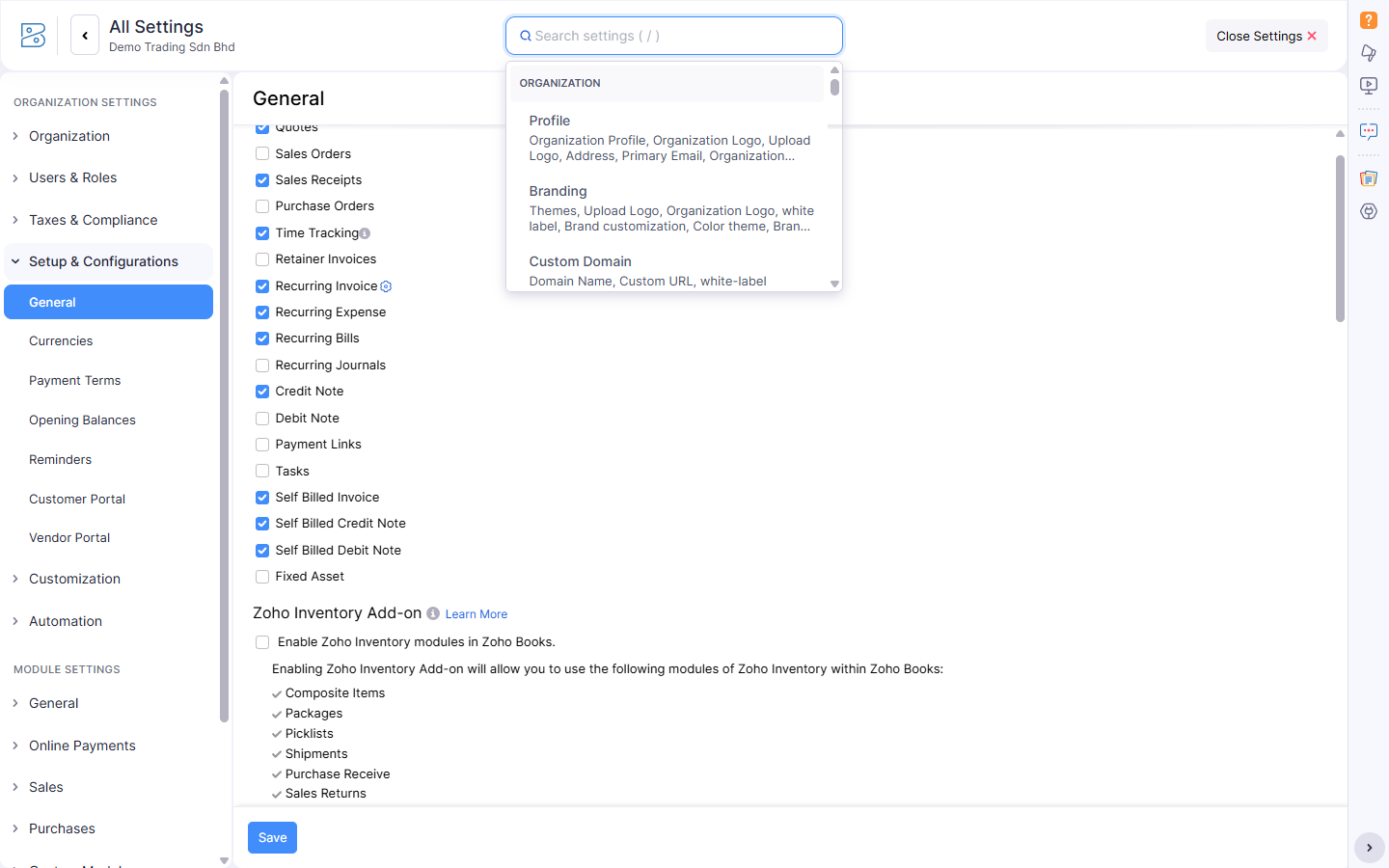
Do this once. In Zoho Books, open Settings > Setup & Configurations > General. Under Select the modules you would like to enable, tick:
- Self Billed Invoice
- Self Billed Credit Note
- Self Billed Debit Note
Click Save.
2. Set up the supplier
Create the supplier under Purchases > Vendors and fill the LHDN fields on the vendor, the same fields as on a customer (see Set LHDN fields on Zoho contacts and items). For a foreign supplier with no Malaysian TIN, use LHDN's general TIN for foreign suppliers:
- TIN:
EI00000000030 - ID Type: BRN
- ID Value:
NA
3. Record the purchase as a self-billed invoice
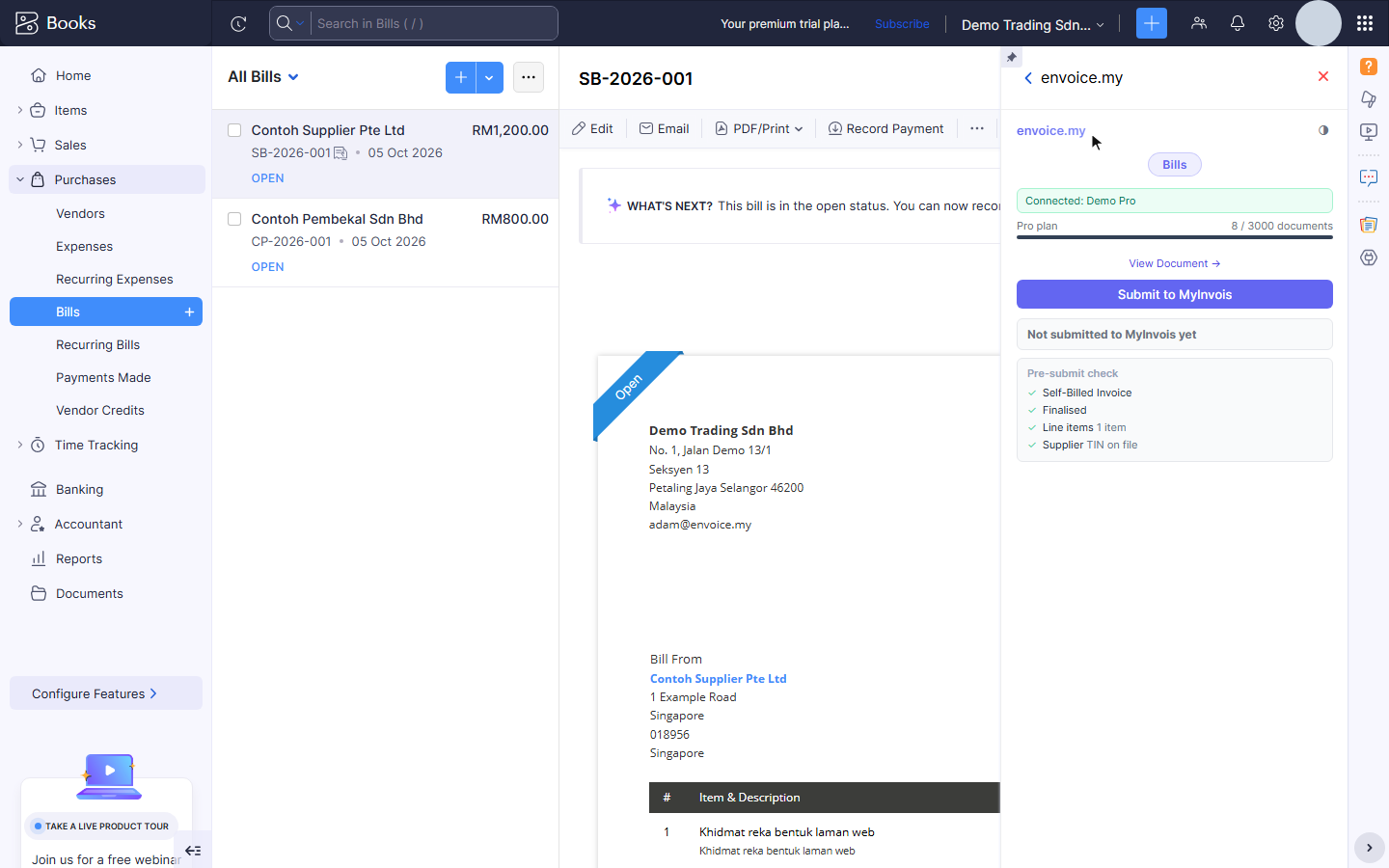
Go to Purchases > Bills and create the purchase as a self-billed bill (the option is there once the module is on). Save it as Open, not as a draft. In the bills list, a self-billed bill has a small self-billed icon next to its number.
Open it and open the envoice.my widget. The widget title shows Bills and the pre-submit check confirms Self-Billed Invoice, Finalised, the line items and the Supplier TIN.
4. Submit to MyInvois
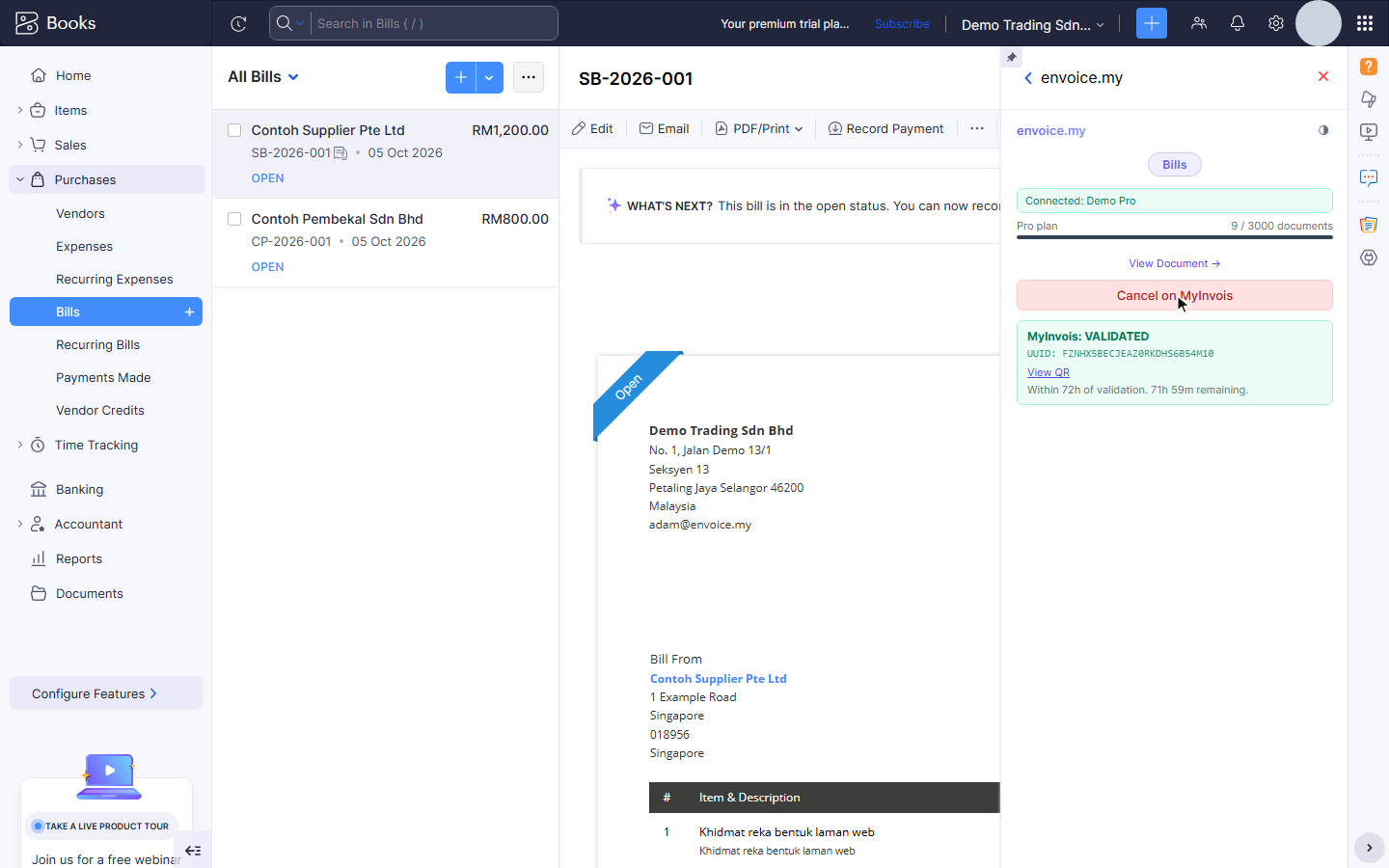
Click Submit to MyInvois. envoice files it as a self-billed invoice (document type 11), with your business as the buyer and the supplier as the seller. When LHDN accepts it, the widget shows MyInvois: VALIDATED with the UUID, View QR and the 72-hour cancel window.
Regular bills from a foreign supplier are blocked
A foreign supplier cannot issue a Malaysian e-invoice, so their purchase has to be self-billed. If you try to save a regular bill for a foreign vendor, envoice stops the save and tells you to create it under Self Billed instead. The same check applies to a regular Vendor Credit for a foreign supplier: raise it as a self-billed credit note instead. Bills and vendor credits from Malaysian suppliers are not affected: those suppliers issue their own e-invoices.
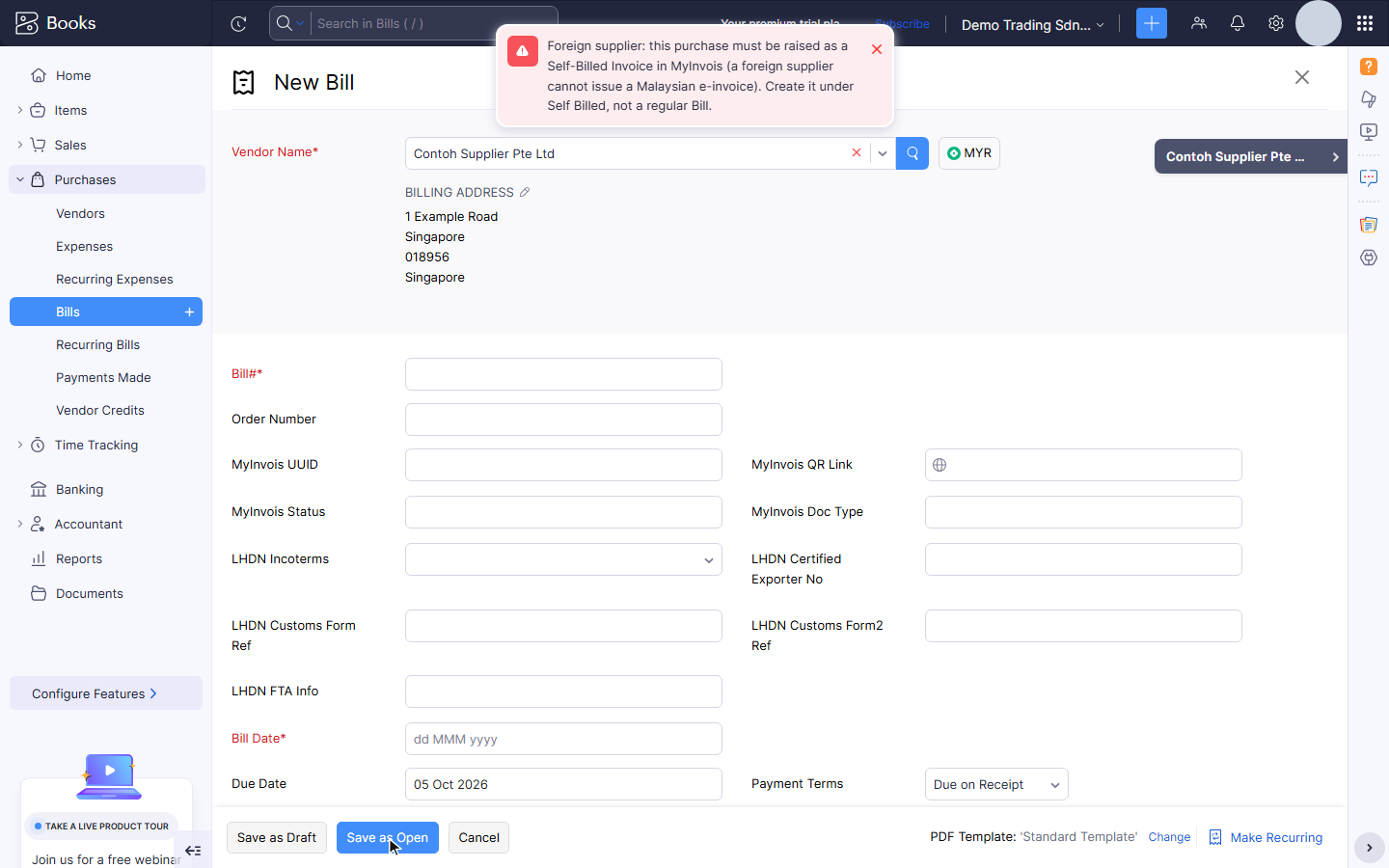
This check runs when you save, from envoice's background extension in Zoho. You do not need the widget open.
Self-billed credit notes
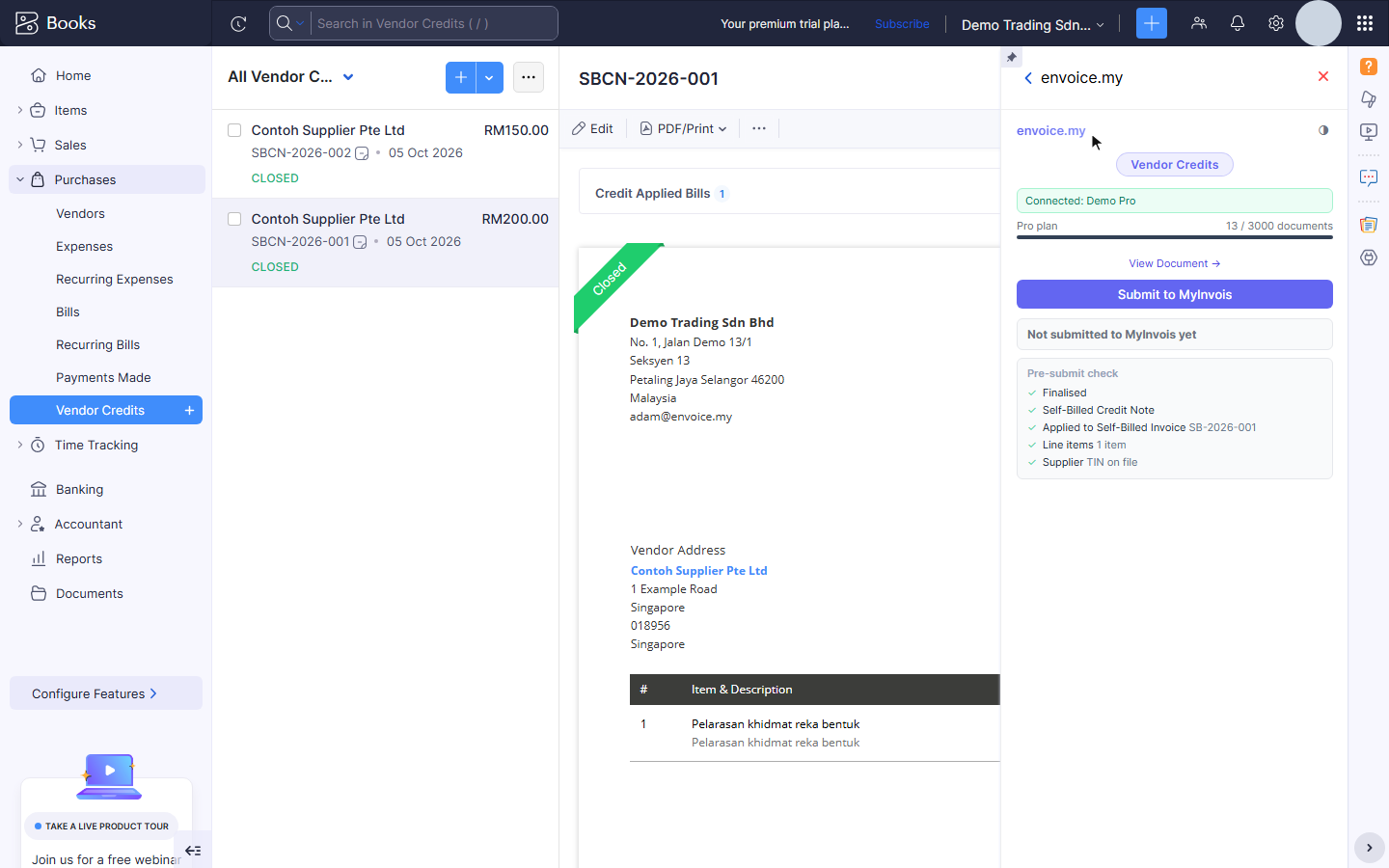
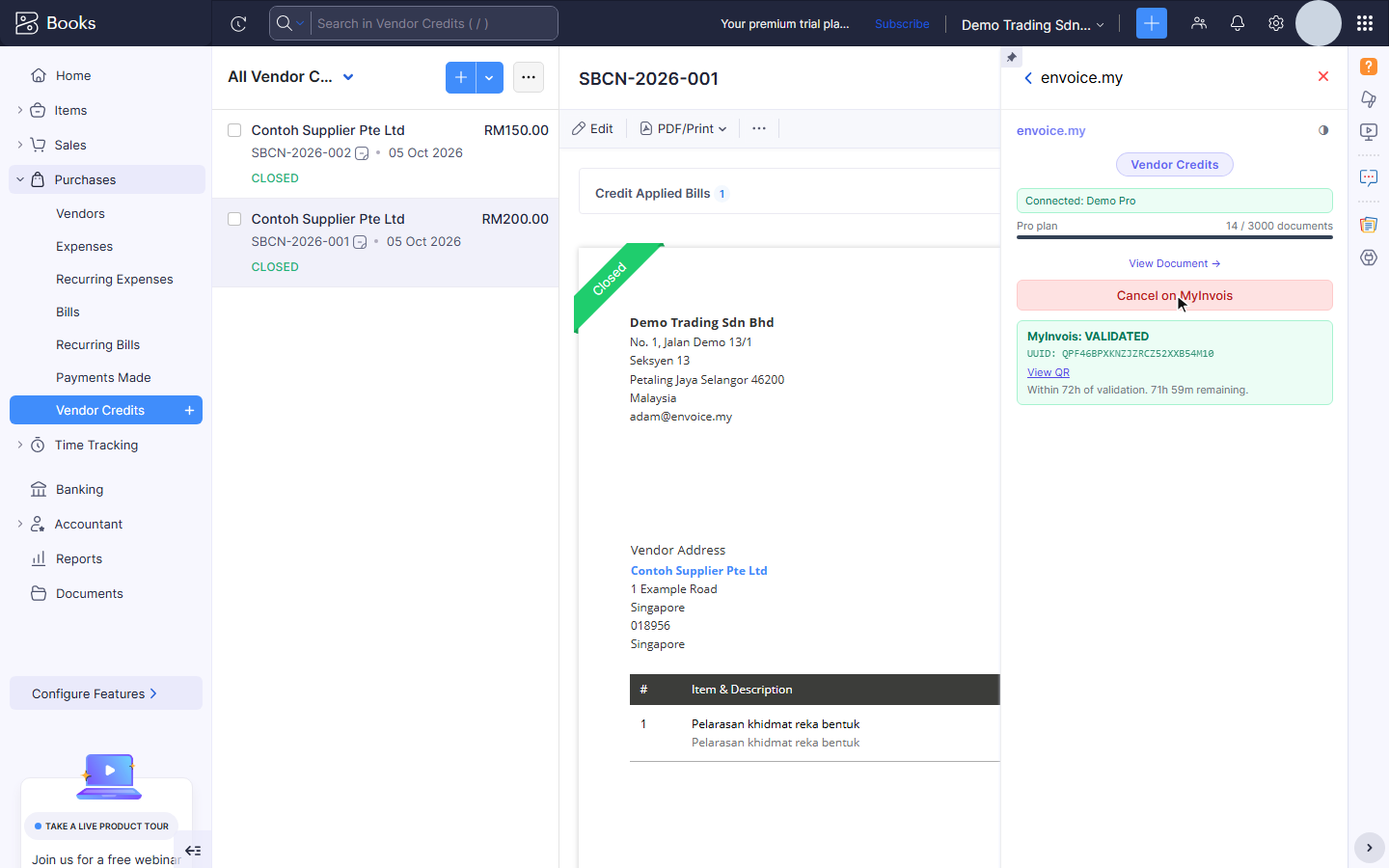
To reduce a validated self-billed invoice (a partial refund from the supplier, a price correction), create a Vendor Credit for the supplier in Zoho and apply it to the original self-billed bill. Open the vendor credit and the widget: the pre-submit check shows Self-Billed Credit Note and Applied to Self-Billed Invoice with the bill number. Click Submit to MyInvois. It files as a self-billed credit note (document type 12).
Self-billed refund notes
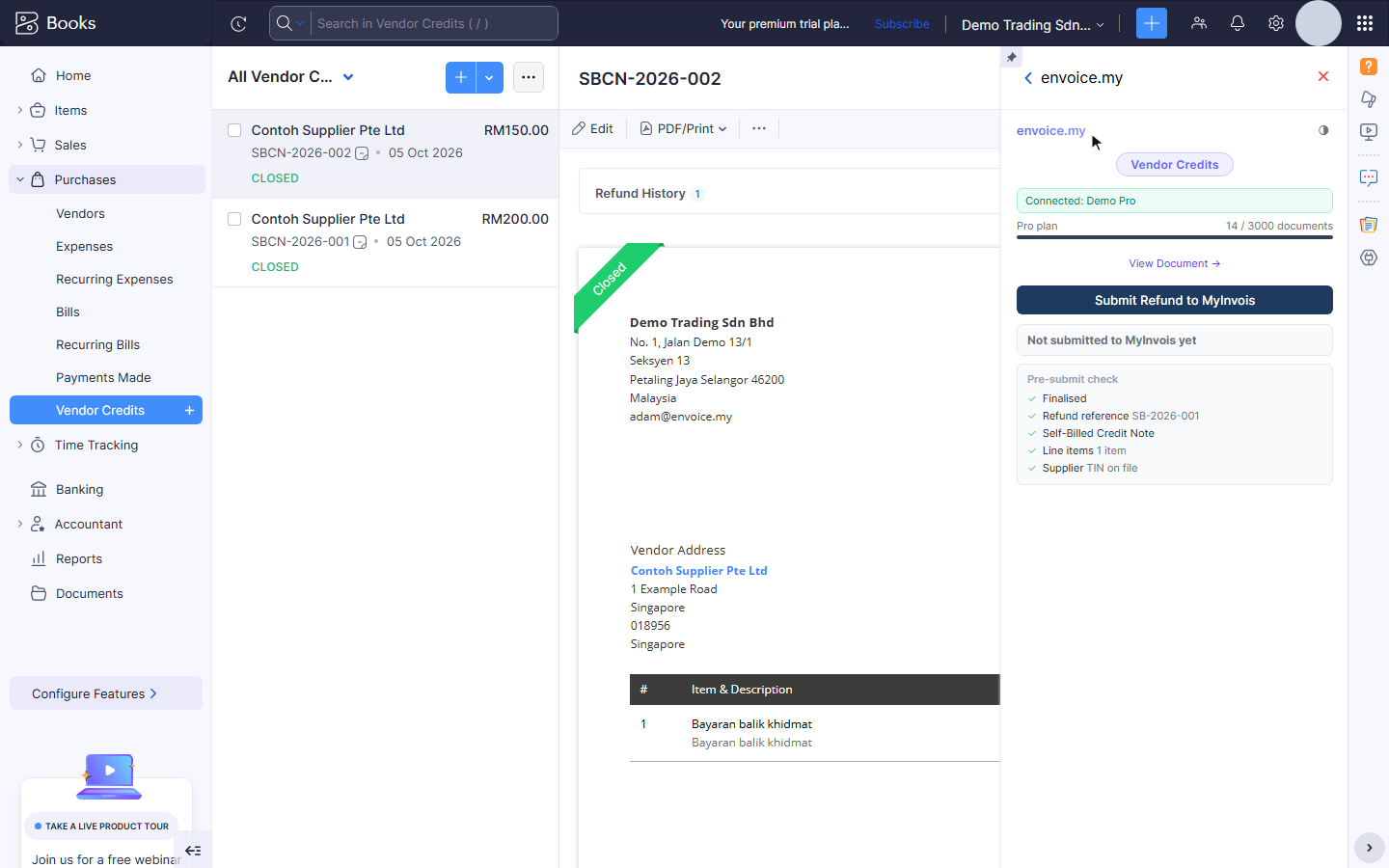
If the supplier actually paid money back, record a Refund on the vendor credit in Zoho, with Reference# set to the original self-billed invoice number. The widget then offers Submit Refund to MyInvois, and the pre-submit check shows Refund reference with that bill number. It files as a self-billed refund note (document type 14) that refers to the original self-billed invoice. A vendor credit is filed either as a credit note or as a refund note, never both.
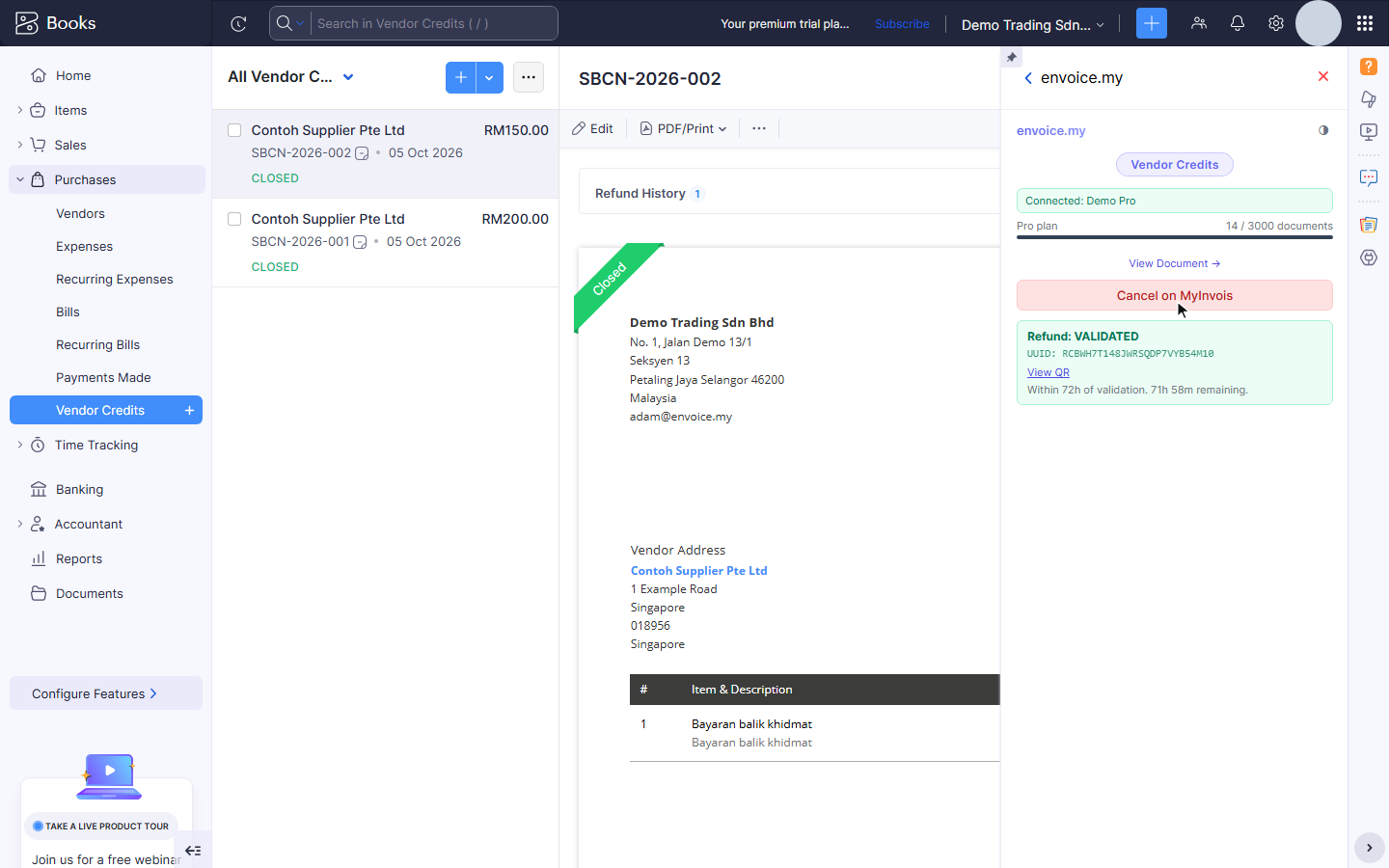
When LHDN accepts it, the widget shows Refund: VALIDATED.
Related