Submit a Zoho invoice to MyInvois
Audience: Shop owner, staff who issue invoices Time: 1 minute per invoice
Once Zoho is connected, you submit each invoice from the envoice widget inside Zoho. envoice sends it to LHDN MyInvois and writes the result (status, UUID, QR link) back onto the Zoho invoice.
Watch the full flow above (a sandbox demo with example data), or follow the steps below.
Before you start
- Zoho is connected to your envoice shop: see Connect Zoho Books to envoice.
- The invoice is saved and sent (not a draft). envoice only submits finalised invoices.
- Your customers and items have their LHDN fields: see Set LHDN fields on Zoho contacts and items.
1. Open the invoice and the widget
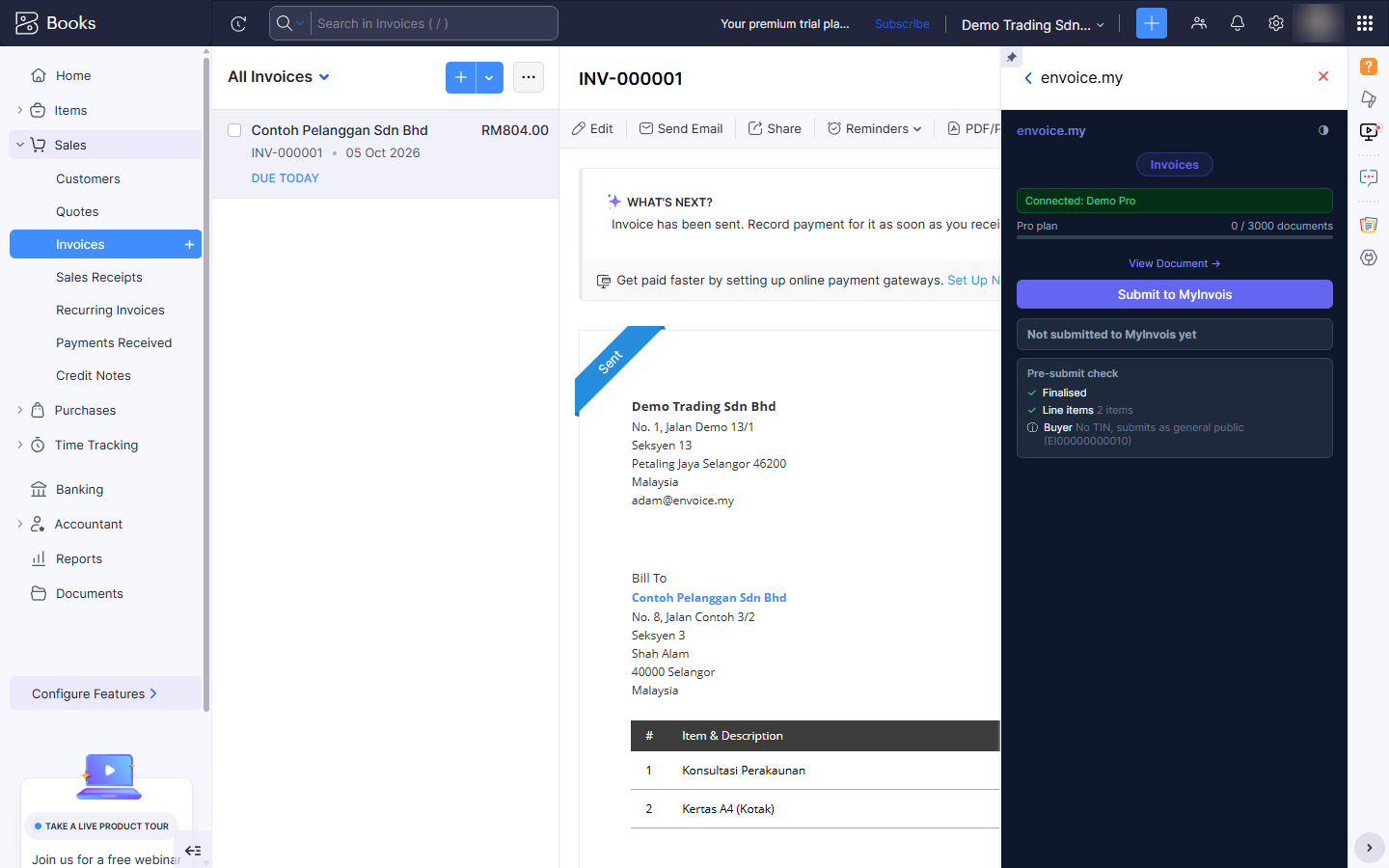
In Zoho Books, go to Sales > Invoices and open the invoice. In the right sidebar, open the envoice.my widget.
2. Read the pre-submit check
Under the button, the Pre-submit check looks at the invoice before anything goes to LHDN:
- Finalised: the invoice is not a draft.
- Line items: how many lines will be sent.
- Buyer: a TIN on file, or "No TIN, submits as general public (EI00000000010)" for a walk-in buyer.
A red item blocks the submit until you fix it in Zoho. An information item (like the general public note) does not block.
3. Click Submit to MyInvois
Click Submit to MyInvois. envoice builds the e-invoice from the Zoho invoice, contact and items, and sends it to LHDN. This usually takes a few seconds.
4. VALIDATED
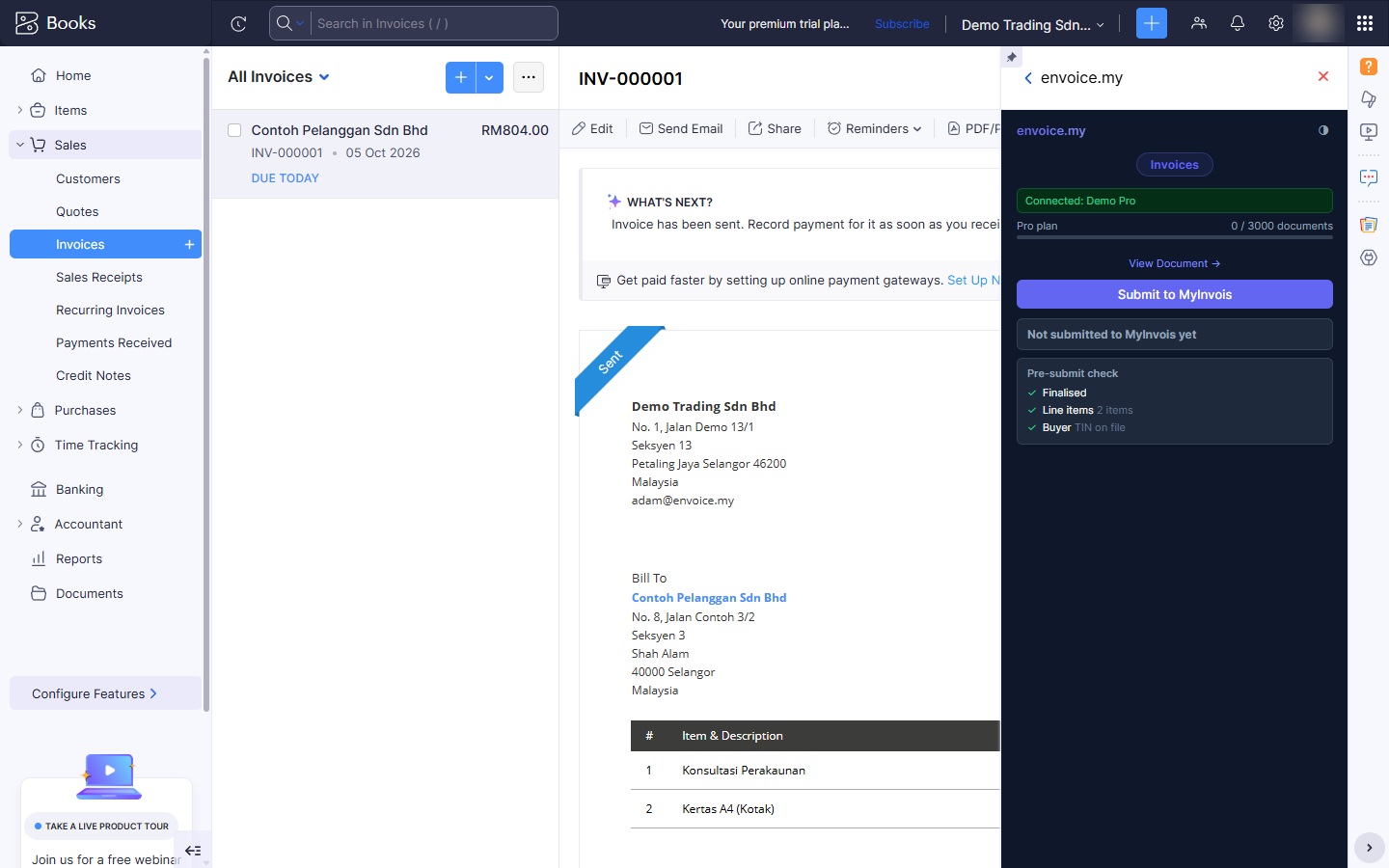
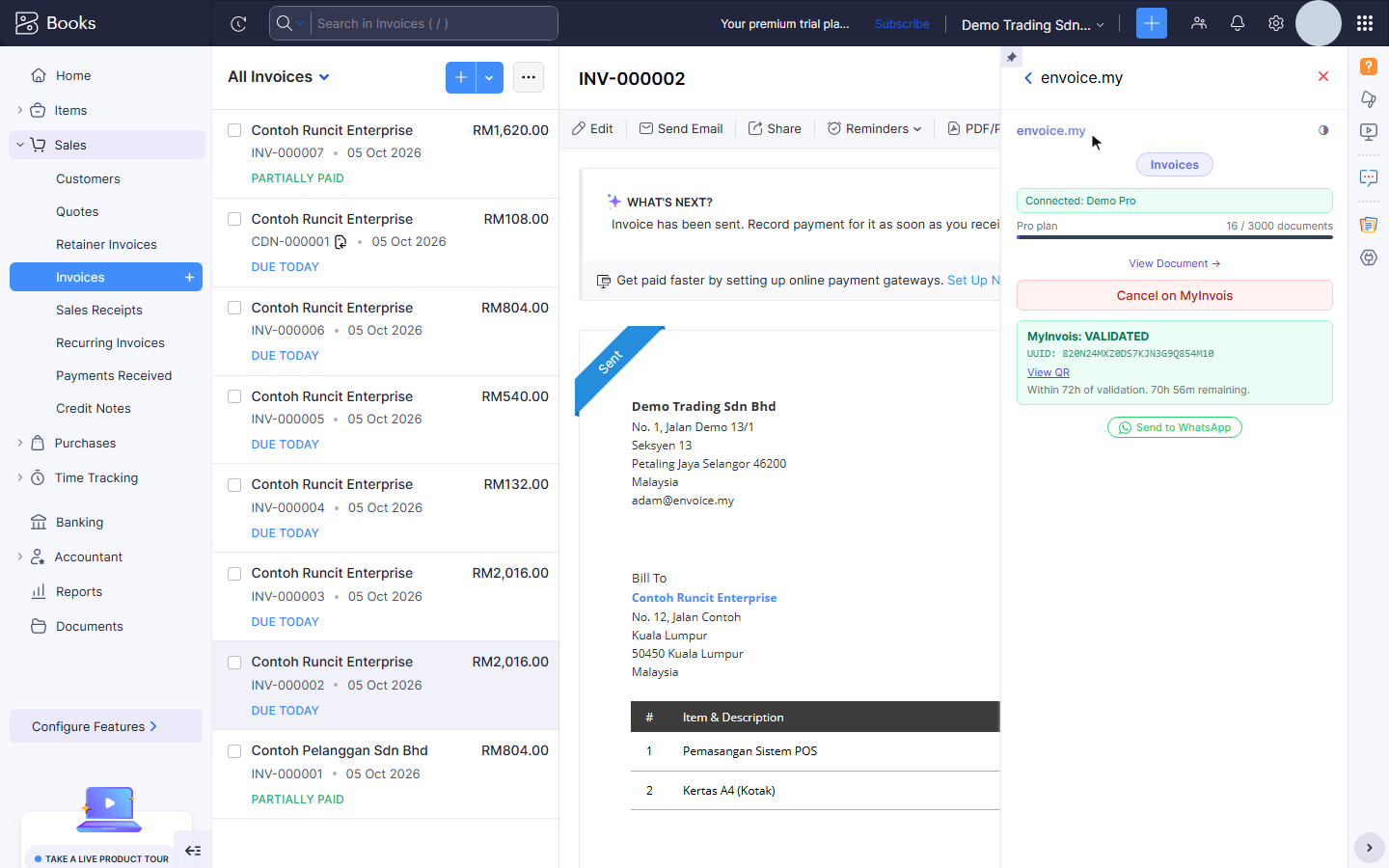
When LHDN accepts it, the widget shows MyInvois: VALIDATED with:
- the UUID, LHDN's unique number for this e-invoice;
- View QR, the link to the validated document on MyInvois, which your buyer can scan;
- the time left in the 72-hour window, during which you can still cancel it (see Cancel a Zoho invoice on MyInvois);
- Send to WhatsApp, to send the e-invoice to your buyer (see below).
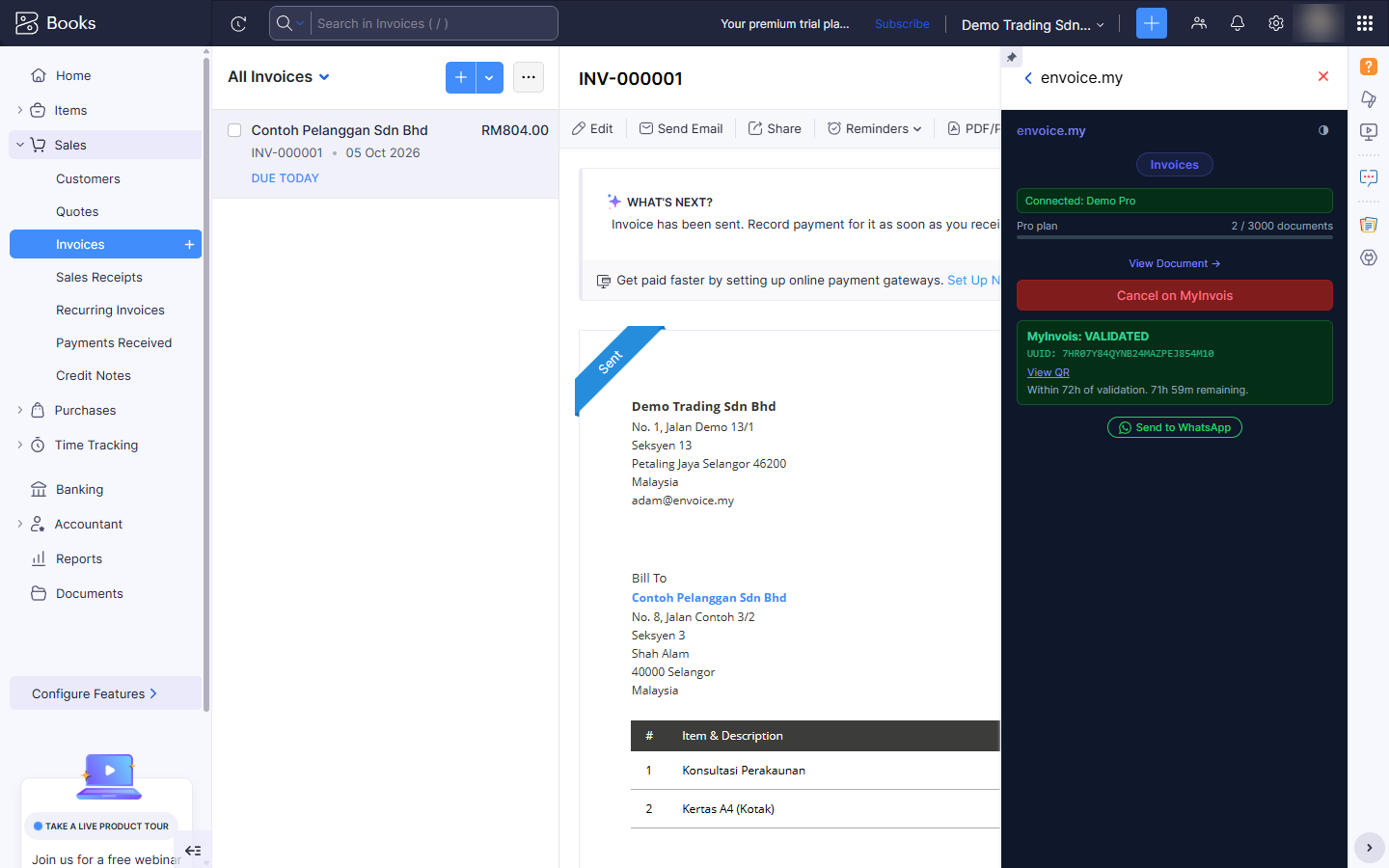
The UUID, status and QR link are also saved on the Zoho invoice in its LHDN fields, so they stay with the invoice.
If LHDN rejects it
The widget shows MyInvois: REJECTED with LHDN's own reason, and Submit to MyInvois stays available. Fix the cause in Zoho (usually the buyer's TIN or ID on the contact), then submit again.
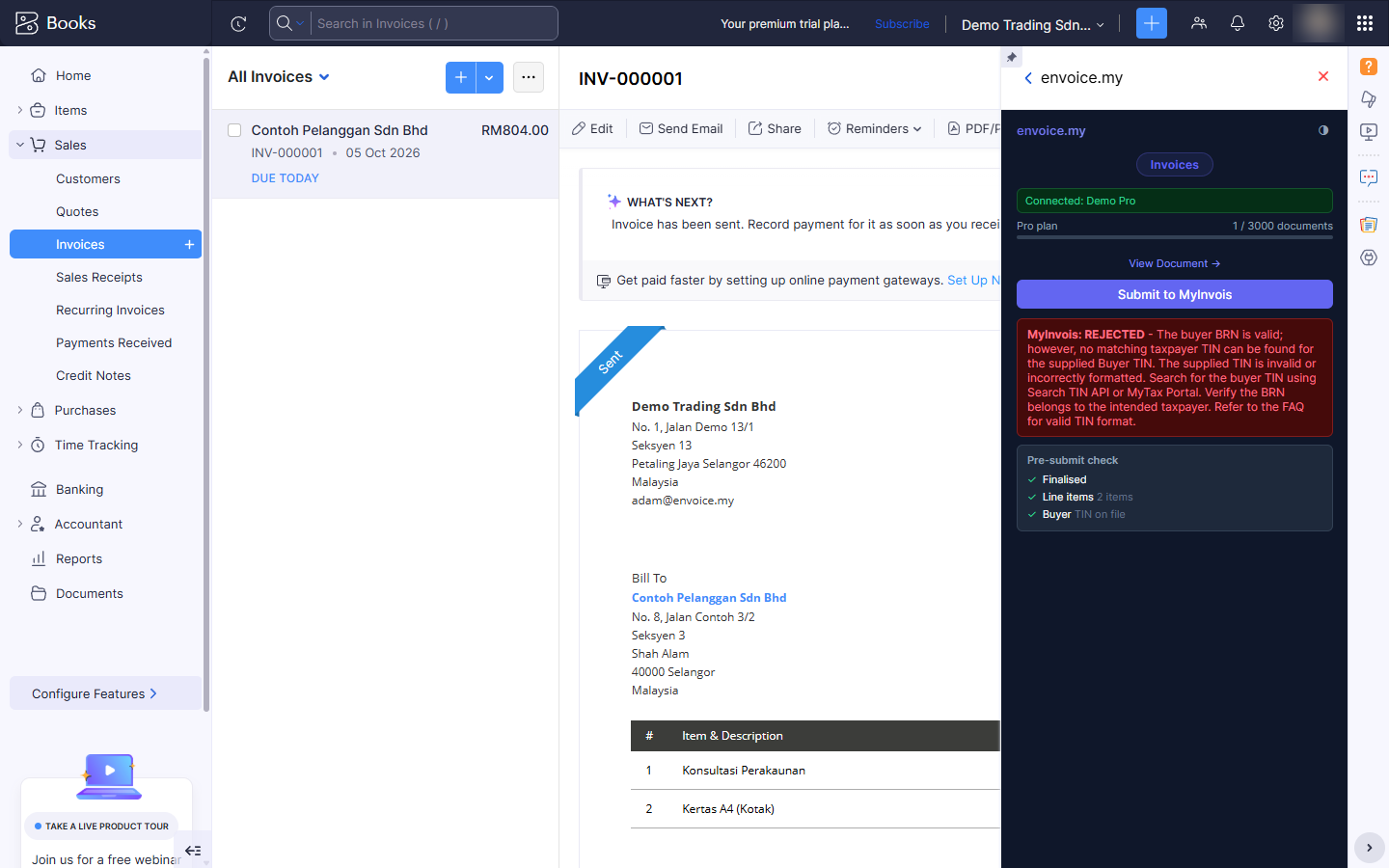
In this example the buyer's BRN is real but the TIN does not belong to it. See Rejected: buyer TIN or BRN does not match and Why was my document rejected?.
Send the e-invoice by WhatsApp
Once the invoice is validated, click Send to WhatsApp in the widget.
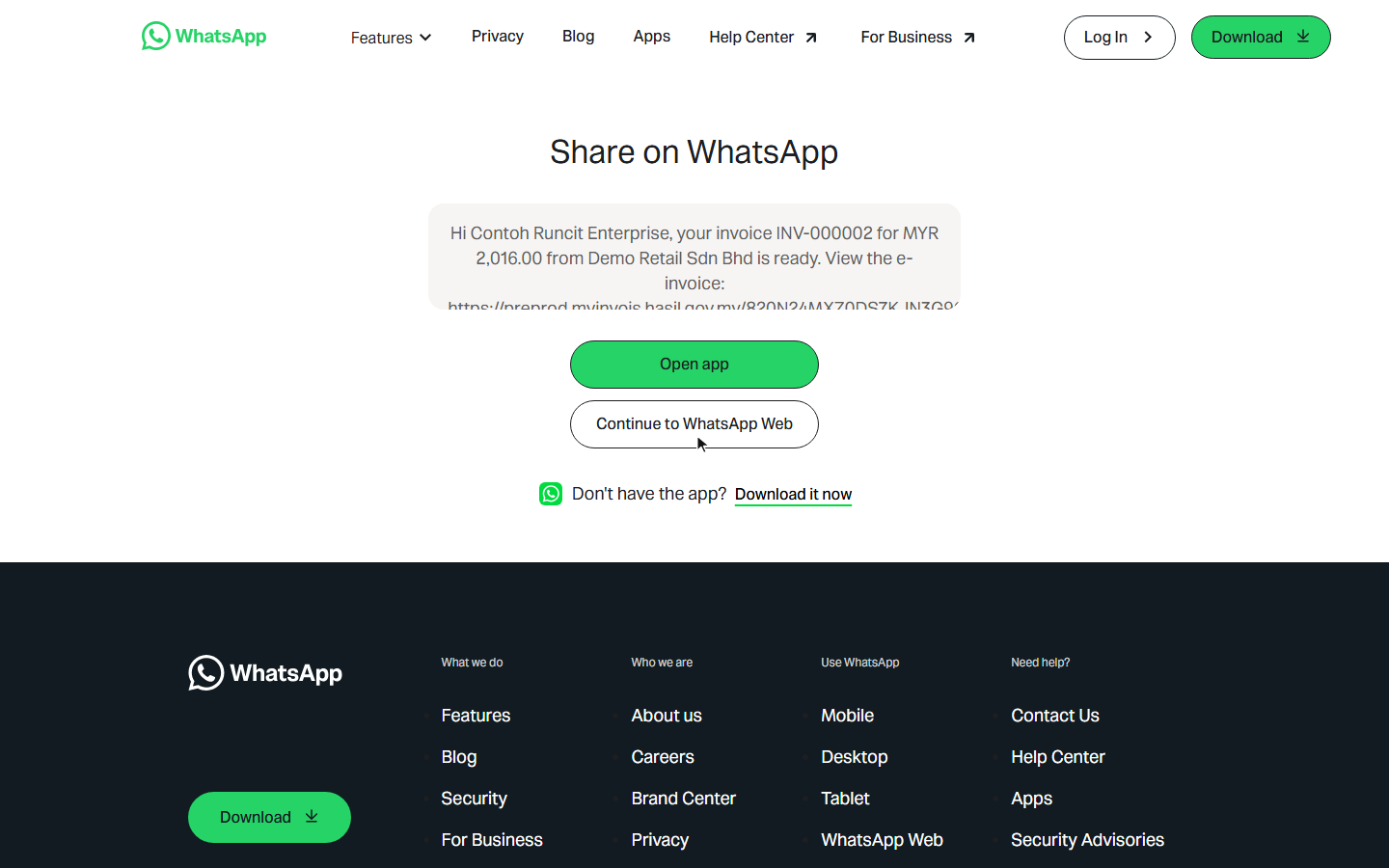
WhatsApp opens with a message already written: the buyer's name, the invoice number, the amount, your shop name and the MyInvois link to the validated e-invoice. If the customer has a phone number in Zoho, the chat opens to that number. Check the message, then send it from the WhatsApp app or WhatsApp Web.
Old invoices
You can submit an invoice from earlier days. envoice files it with today's date, so it is not rejected under LHDN's 72-hour rule. See Can I file an invoice that is more than 72 hours old?.
Related
- Set LHDN fields on Zoho contacts and items
- Submit several Zoho invoices at once
- Deposits from Zoho retainer invoices
- Submit a Zoho sales receipt to MyInvois
- Send the receipt by WhatsApp or email
- Credit, debit and refund notes from Zoho
- Cancel a Zoho invoice on MyInvois
- Zoho submission history
- Why was my document rejected?
- Rejected: buyer TIN or BRN does not match