Send the receipt by WhatsApp or email
Audience: All users (SME) Time: 1 minute
From any sale's document page you can send the buyer their receipt on WhatsApp or email them the e-invoice PDF. No copying links by hand.
Send by WhatsApp
- Open the document from Documents.
- Click Send to WhatsApp.
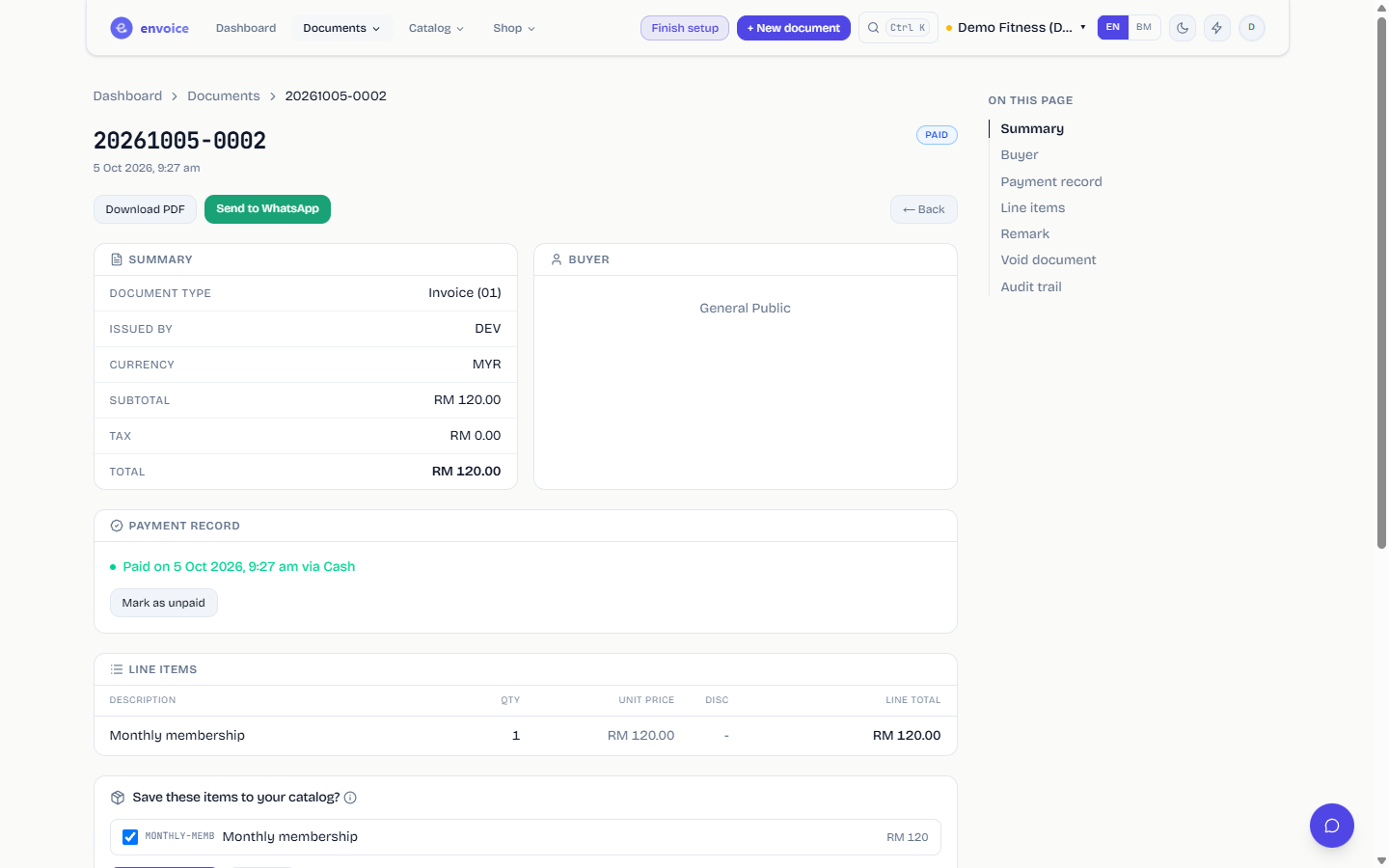
WhatsApp opens with your message already typed. If the sale has the buyer's phone number, the chat opens with that number; if not, WhatsApp asks you to pick a contact. Check the message and press send.
Which documents have the button: standard invoices that are validated by LHDN, and paid walk-in sales that are still waiting for the monthly consolidated e-invoice.
Which link goes in the message:
- A validated e-invoice links to its page on MyInvois.
- A walk-in sale not yet filed links to your customer portal, so the buyer can request an e-invoice in their own name. This needs the portal to be on. If it is off, the page shows Turn on the customer portal to include a receipt link. See Let buyers request e-invoices.
Change the WhatsApp message
Open Settings > Profile, click More settings, and scroll to WhatsApp message (Send to WhatsApp button).
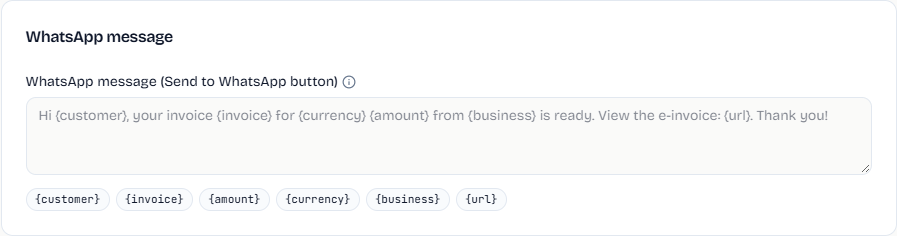
Type your message. Click a placeholder button to insert it where your cursor is; envoice swaps it for the real value on each sale:
| Placeholder | Replaced with |
|---|---|
{customer} |
The buyer's name |
{invoice} |
The document number (or the store's own order number for a channel sale) |
{amount} |
The total |
{currency} |
The currency, for example MYR |
{business} |
Your shop name |
{url} |
The MyInvois or portal link |
Leave it blank to use the default message. Click Save business details when done.
Send by email
On a validated document, click Email, type the buyer's address and click Send. The buyer receives the e-invoice with the PDF attached and a link to view it on MyInvois.
- Only validated documents can be emailed. This includes credit and debit notes.
- You can send the same document again after a minute.
- The email is in English or Bahasa Melayu. See Email language.