Let buyers request e-invoices (customer portal)
Audience: Shop owner (Admin) Time: 5 minutes to set up
Most walk-in sales go into your monthly consolidated e-invoice. When a buyer wants an e-invoice in their own name, they can ask for it themselves through your portal: they scan a QR code, enter the receipt details and their tax details, and envoice turns it into an e-invoice. You do not retype anything.
1. Turn on the portal
Open Settings > Portal.
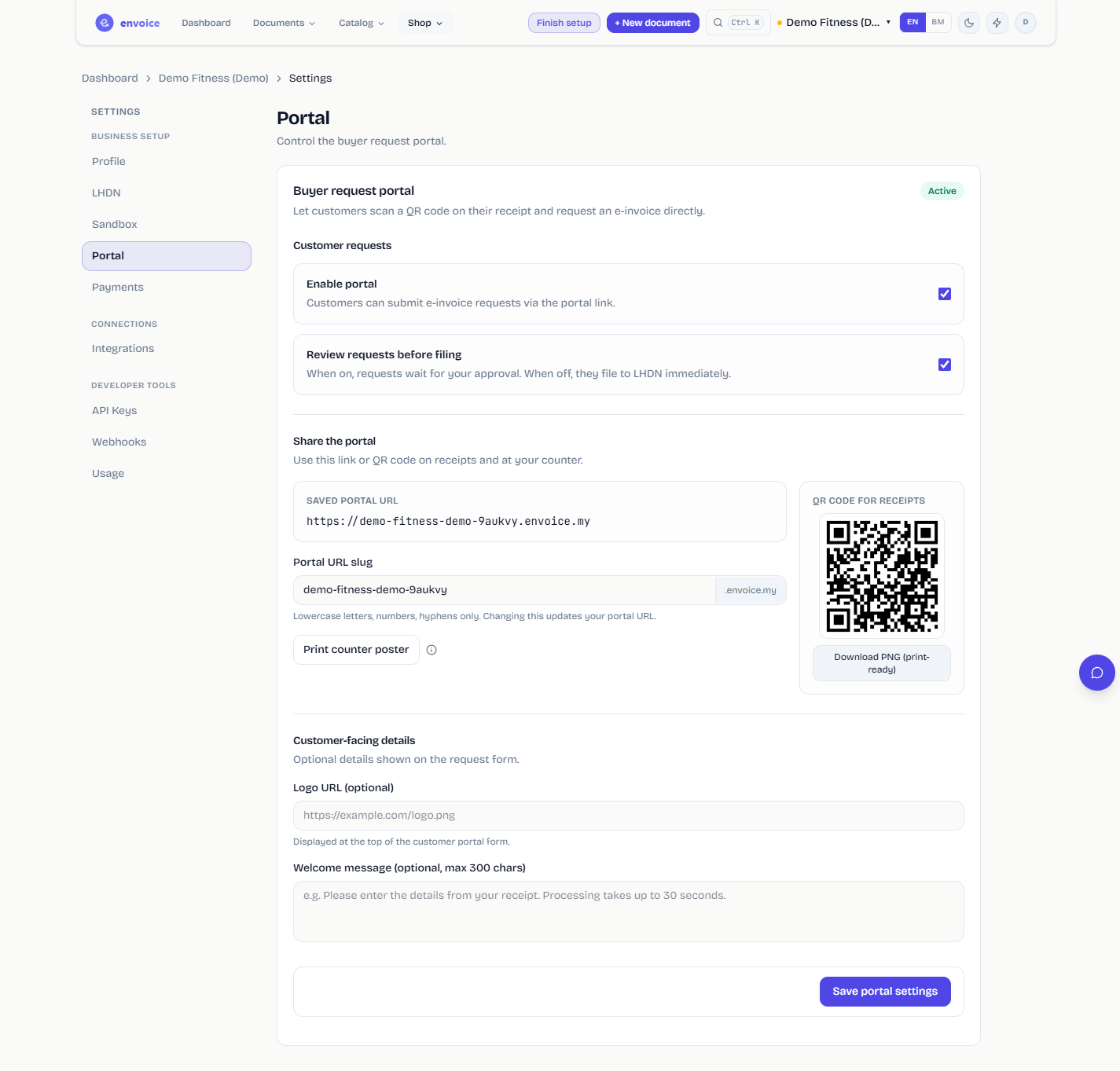
- Switch on Enable portal.
- Leave Review requests before filing on if you want to check each request first. When it is off, requests file to LHDN as soon as they arrive.
- Click Save portal settings. The status at the top changes to Active.
2. Share the link or QR code
Under Share the portal you see the Saved portal URL.
- On Pro and Enterprise, the portal has its own address:
https://<your-name>.envoice.my. - On other plans the address is
https://envoice.my/request/<your-name>.
You can change the part that identifies your shop in Portal URL slug (lowercase letters, numbers and hyphens only). Save before you print anything, because a changed slug changes the URL.
Then choose how buyers find it:
- Print counter poster opens an A5 PDF with your QR code, ready to stand at the counter.
- Download PNG (print-ready) gives you the QR code to add to your receipt template.
Optional: add a Logo URL and a Welcome message (up to 300 characters) under Customer-facing details.
3. What the buyer sees
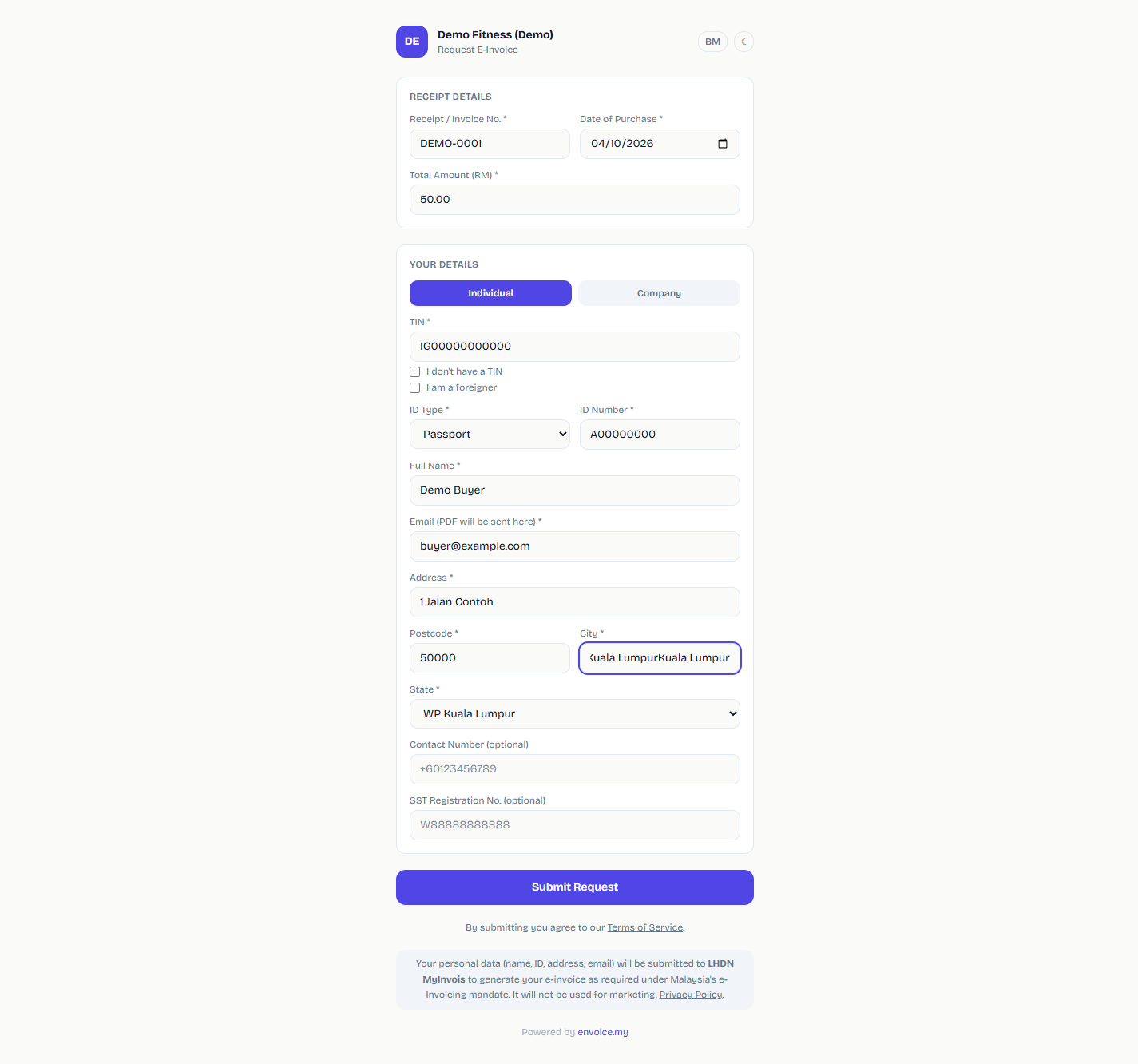
The buyer scans the code and fills in the request form: the receipt or invoice number, date of purchase and total, then their own details (individual or company, TIN, ID, name, email and address). The form explains that their details go to LHDN MyInvois only to issue the e-invoice.
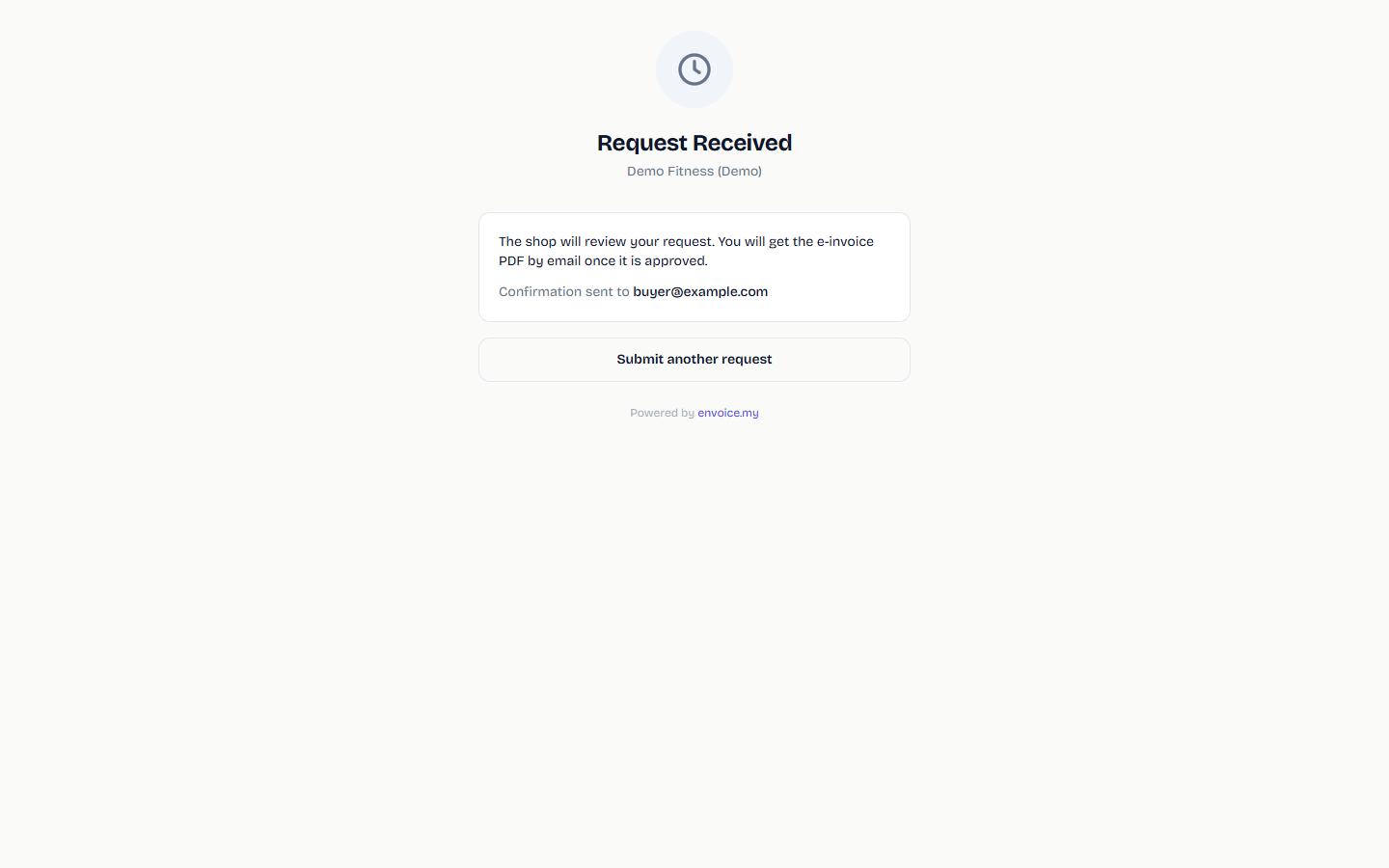
After they submit, they see a confirmation that the shop will review the request and that the e-invoice PDF will be emailed once it is approved.
4. Approve or reject requests
Open Documents > Requests (or go to Requests from the dashboard). Requests wait under PENDING.
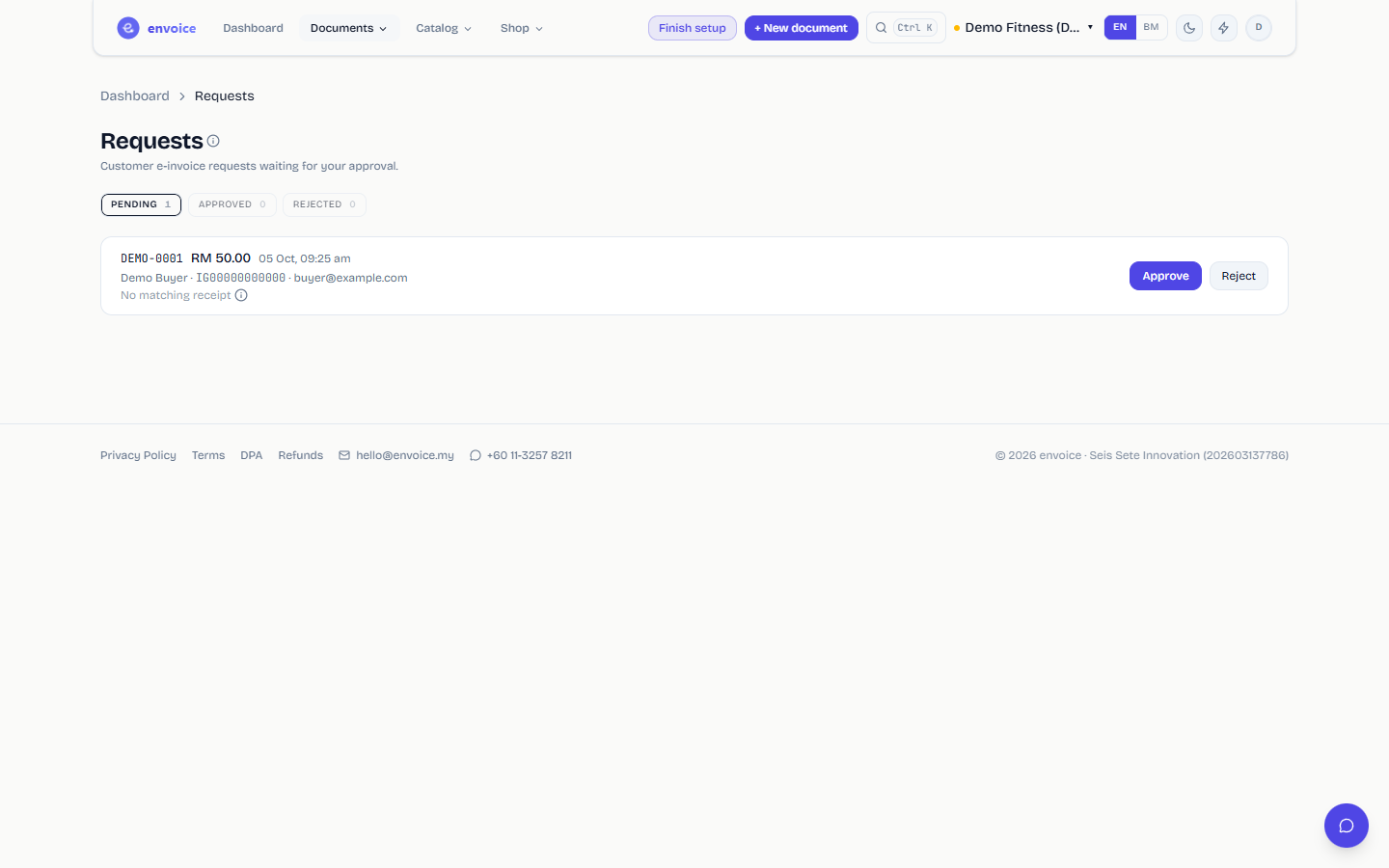
Each row shows the receipt number, amount, and the buyer's name, TIN and email. envoice also looks for the matching sale in your records:
- View receipt means it found the sale with that receipt number and amount, and the e-invoice uses its line items.
- No matching receipt means nothing matched. Approving still files an e-invoice, as a single line for the amount the buyer entered. Check the receipt before you approve.
Then:
- Click Approve to file the e-invoice. The buyer gets the PDF by email.
- Or click Reject, type a reason, and click Send rejection. The reason is sent to the buyer.
If filing fails, the row shows the reason and a Retry button. Approved and rejected requests move to their own tabs.
Membership enrolment
If you bill memberships through a connected payment gateway, members can enrol once at https://envoice.my/enrol/<your-name>. After they confirm their email, every future membership charge is issued as an individual e-invoice in their name instead of going into the consolidated e-invoice. Enrolment needs the portal to be on.