Connect Magento
Audience: Shop owner (Admin) and whoever runs your Magento server Time: 15 minutes
The module envoice LHDN e-Invoice for Magento files e-invoices for Magento Open Source and Adobe Commerce orders. Paid orders file as individual e-invoices or go into your monthly consolidated e-invoice, and credit memos become credit notes. It supports Magento 2.4.7 to 2.4.9 on PHP 8.2 to 8.5. The module is free. You need an envoice account; the Free plan is enough to start. The screenshots in this guide are from a sandbox demo with example data.
1. Install the module
With Composer (recommended)
The module is on Packagist and its source is public on GitHub. In your Magento root, run:
composer require envoice/module-einvoice
bin/magento module:enable Envoice_Einvoice
bin/magento setup:upgrade
bin/magento cache:flush
From the zip
Download the free zip from envoice.my/mkt/downloads/envoice-magento.zip, then either:
- Put it in a folder such as
artifacts/in your Magento root, runcomposer config repositories.envoice artifact ./artifacts, thencomposer require envoice/module-einvoice. - Or unzip it into
app/code/Envoice/Einvoice, so thatregistration.phpsits atapp/code/Envoice/Einvoice/registration.php.
Then run the three bin/magento commands above.
In production mode, also run bin/magento setup:di:compile and bin/magento setup:static-content:deploy.
Magento cron must be running, because cron does the filing. If it is not set up yet, run bin/magento cron:install.
2. Connect your envoice shop
- In the Magento admin, go to Stores > Configuration > envoice > LHDN e-Invoice.
- Under Connection, each store URL is listed with its store views. Click Connect to envoice on the row.
- A window titled Connect your Magento store opens on envoice.my. Sign in, or create a free account first.
- Pick the envoice shop to link. The row turns Connected.
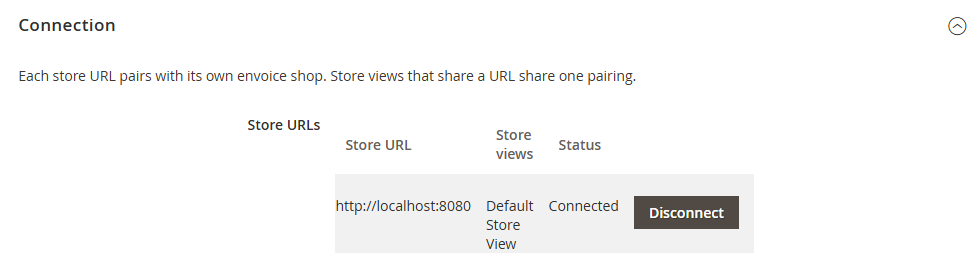
Until your envoice shop has its LHDN credentials, it files in sandbox and nothing reaches LHDN. To go live, see Start in the demo shop and go live.
3. Choose your settings
The Automation group sits on the same page. Each setting can be set for the whole install, per website or per store view. Click Save Config when done.
- Auto-submit paid orders: file an order once its invoice is paid. Off by default.
- Auto-submit as: Individual e-invoice or Monthly consolidated e-invoice. Orders with a buyer TIN always file individually.
- Skip orders not in MYR: do not auto-submit foreign currency orders. On by default.
- Minimum order total (MYR): only auto-submit orders at or above this amount. Leave empty for all orders.
- Credit notes for credit memos: file a credit note when you create a credit memo for an e-invoiced order. On by default.
- Buyer TIN from VAT number: read the billing VAT number as the buyer's TIN. On by default.
- BRN or IC field at checkout: show an optional field for the buyer's business registration number or IC. On by default.
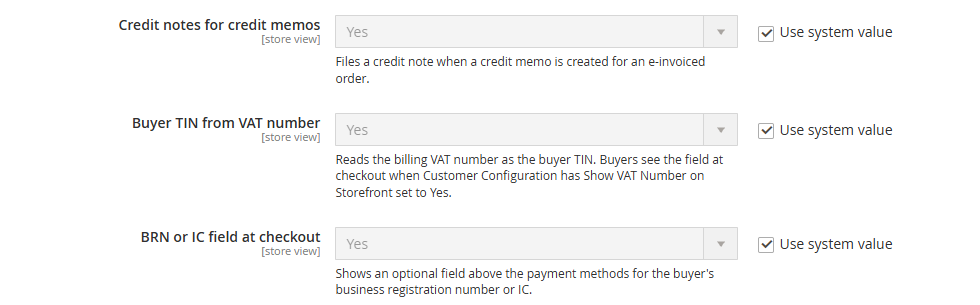
Leave the Advanced group as it is.
4. Let business buyers give their details at checkout
LHDN checks a company's TIN together with its BRN, so a business buyer needs both.
- For the TIN: go to Stores > Configuration > Customers > Customer Configuration > Create New Account Options and set Show VAT Number on Storefront to Yes. Buyers enter their TIN in the VAT number field.
- For the BRN or IC: keep BRN or IC field at checkout on. The field shows above the payment methods.

A business buyer who fills in both is filed with no edits on your side. An order with neither a TIN nor a BRN or IC goes into the consolidated e-invoice when auto-submit is set to consolidated.
5. How orders file
Nothing calls envoice during checkout or while you save an invoice, so your store never slows down. When an invoice is paid or a credit memo is created, the module queues it, and Magento cron sends it to envoice within a minute. A failed call retries by itself with growing gaps, from 1 minute up to a day. Cron also refreshes LHDN statuses every 15 minutes.
- Individual: each order gets its own e-invoice with an LHDN UUID and validation link.
- Monthly consolidated: orders without a buyer TIN are recorded and pooled into one consolidated e-invoice, which envoice files in the first days of the next month. Orders above RM10,000 always file individually. See Submit a monthly consolidated e-invoice.
6. The order page
Open an order in Sales > Orders. The LHDN e-Invoice (envoice) section under Order & Account Information shows the status and the actions for that order.

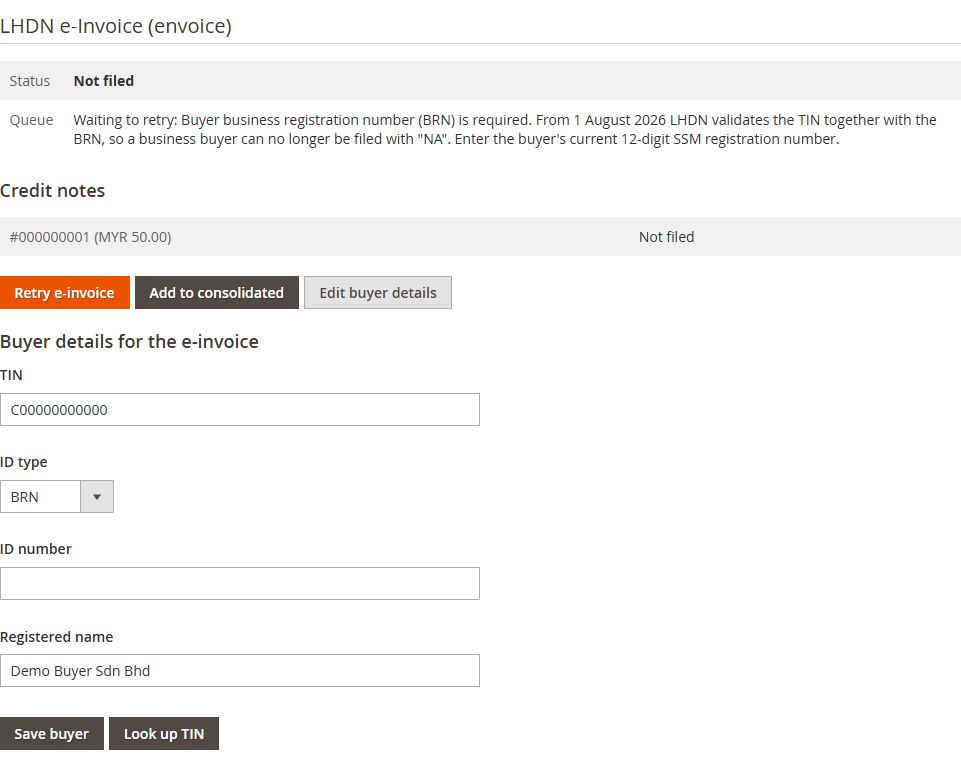
- Submit e-invoice files the order as its own e-invoice. Once an attempt has been made, the button reads Retry e-invoice.
- Add to consolidated records the order for the monthly consolidated e-invoice.
- Edit buyer details opens the buyer form: TIN, ID type, ID number and registered name, filled in from checkout. Click Save buyer, then Submit e-invoice or Retry e-invoice.
- Look up TIN asks LHDN for the TIN that belongs to the ID type and ID number in the form, and saves it for the e-invoice.
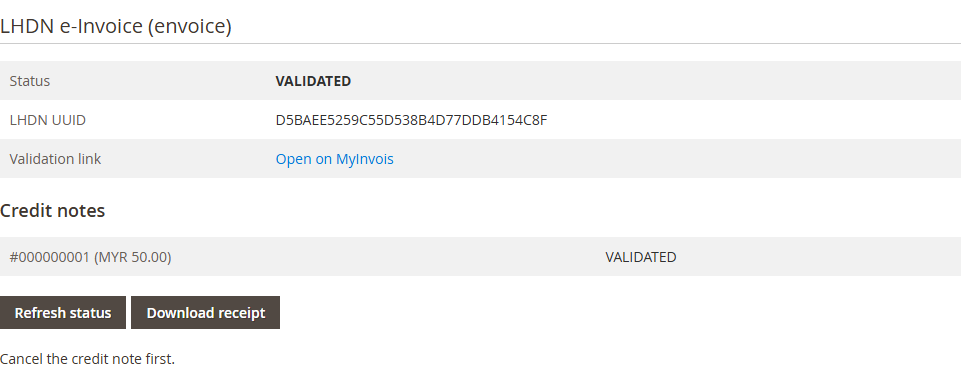
Once an order is filed, the section shows the LHDN UUID, an Open on MyInvois validation link, Refresh status and Download receipt.
A recorded order waits for the monthly consolidated e-invoice. Its receipt can already be downloaded.

Cancel e-invoice shows for 72 hours after LHDN validates the e-invoice. Give a reason of 5 to 300 characters and confirm, and the e-invoice is cancelled on MyInvois. If a credit note has been filed against it, cancel the credit note first. After 72 hours, refund with a credit memo instead.
7. Refunds
Create a credit memo in Magento as usual.
- For an order filed as its own e-invoice, the module files a credit note to LHDN that references it. The order page lists each credit memo under Credit notes with its status. If one did not file, click File credit note or Retry credit note.
- For an order recorded for the consolidated e-invoice and not yet filed, the refund comes off that month's total. No credit note is needed.
Switch off Credit notes for credit memos if you handle refunds another way.
Several stores or businesses
Each store URL pairs with its own envoice shop. A store view with its own domain, or with store codes in its URLs, can file under a different business and TIN. Store views that share one URL share one pairing. For two businesses, create an envoice shop for each, then connect each store URL to its own shop. See Switch between shops.
Plans and pricing
The module costs nothing. Every e-invoice and consolidated sale counts toward your envoice plan, together with your other connections. Each plan includes one shop; extra shops are RM15 a month each. See How much does envoice cost? and Billing, plans, and refunds.
Troubleshooting
Paid orders stay Not filed. Check that Magento cron runs (bin/magento cron:install, then look for recent envoice_process_queue runs in the cron_schedule table). If the section shows an Auto-submit row with a reason, such as auto-submit being off or the order not being in MYR, change that setting or click Submit e-invoice by hand.
"Buyer business registration number (BRN) is required." LHDN checks the buyer's TIN together with their BRN, so a business buyer cannot be filed with a TIN alone. Click Edit buyer details, choose BRN as the ID type, enter the buyer's 12-digit SSM registration number, click Save buyer, then Retry e-invoice. If the buyer only gave a BRN, Look up TIN fills in the TIN. If the buyer does not need their own e-invoice, click Add to consolidated instead.
"This store URL is not connected to envoice." The order's store view has no pairing yet. Click Connect in the message, or go to Stores > Configuration > envoice > LHDN e-Invoice and connect that store URL.
The Queue row says Waiting to retry or Failed. It shows the reason envoice returned. The module keeps retrying a waiting job by itself. Fix the order or buyer details and click Retry e-invoice to send it now. See Why was my document rejected?.
Disconnect or uninstall
Click Disconnect on the store URL row in Stores > Configuration > envoice > LHDN e-Invoice. To remove the module, run bin/magento module:disable Envoice_Einvoice, remove it (composer remove envoice/module-einvoice, or delete app/code/Envoice/Einvoice), then bin/magento setup:upgrade. The module's tables stay until you drop them. Filed e-invoices stay in your envoice account.