Connect Loyverse POS (coming soon)
Audience: Shop owner (Admin) Time: 5 minutes
Connect your Loyverse POS account to an envoice shop and your paid receipts are filed to LHDN without retyping them. You keep selling in Loyverse as usual. The screenshots in this guide are from a sandbox demo with example data.
What it does
- Walk-in sales (no buyer TIN, under RM10,000) are recorded for your monthly consolidated e-invoice, which envoice files at the start of the next month. Nothing is sent to LHDN per receipt.
- Business buyers get their own e-invoice. Loyverse has no TIN field, so type the buyer's TIN in their Loyverse customer record, in Customer code or Note. You can add their registration number (BRN) after the TIN, separated by a space, for example
C12345678901 202001012345. - Receipts over RM10,000 always file as their own e-invoice, as LHDN requires.
- Refunds become credit notes, on every plan including Free.
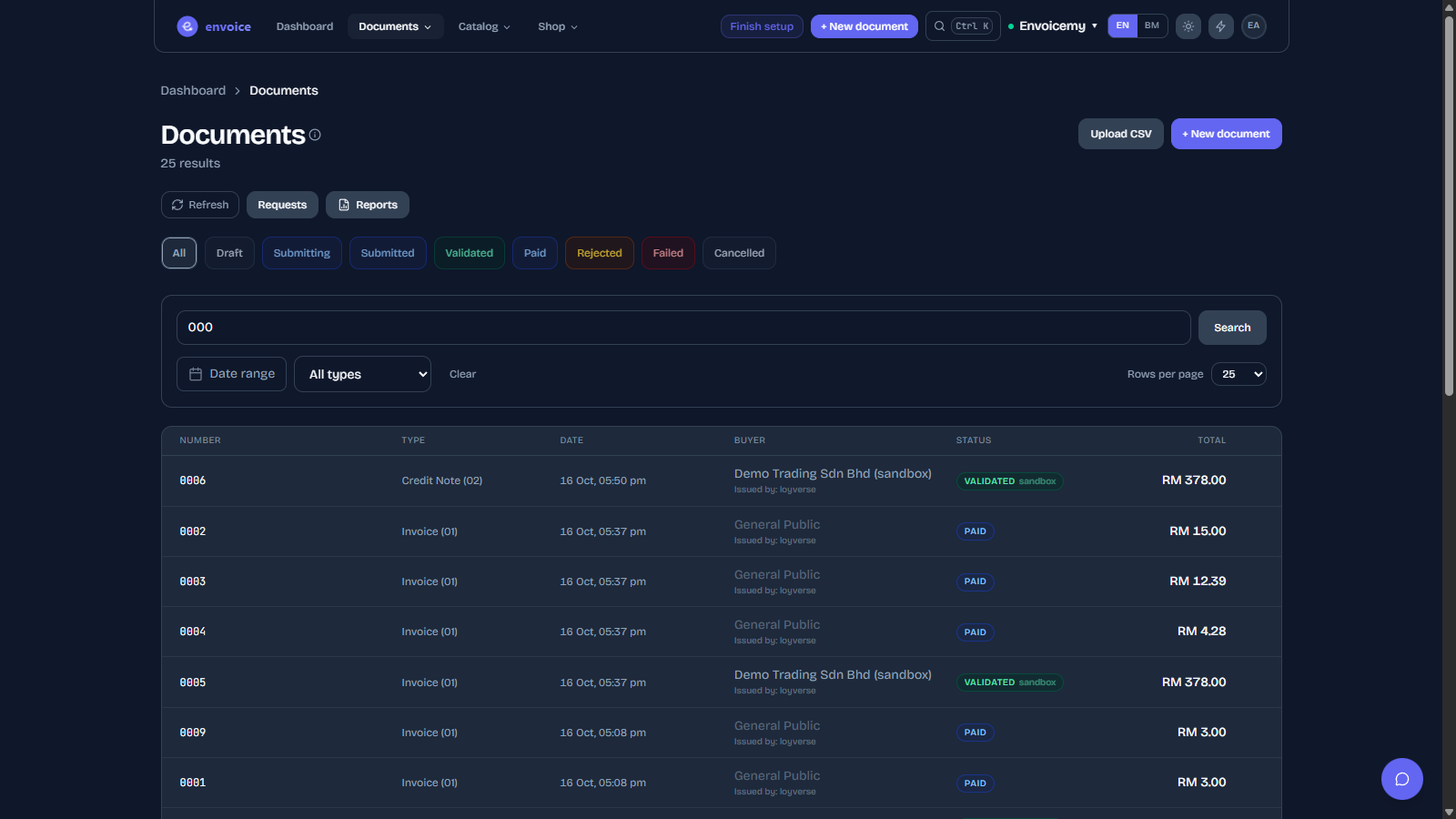
- Each document keeps your Loyverse receipt number, so you can match it to the receipt in Loyverse.
The envoice shop needs its own LHDN credentials before anything reaches LHDN. See Start in the demo shop and go live.
1. Connect your Loyverse account
From envoice:
- Open Settings > Integrations and find the Loyverse POS card.
- Click Connect Loyverse.
- Sign in to Loyverse and click Allow.
- You return to envoice and the card shows Connected with your Loyverse business name.
From the Loyverse Marketplace (once envoice is listed there):
- Click Connect App on the envoice app in Loyverse.
- Sign in to envoice, or click Create a free account.
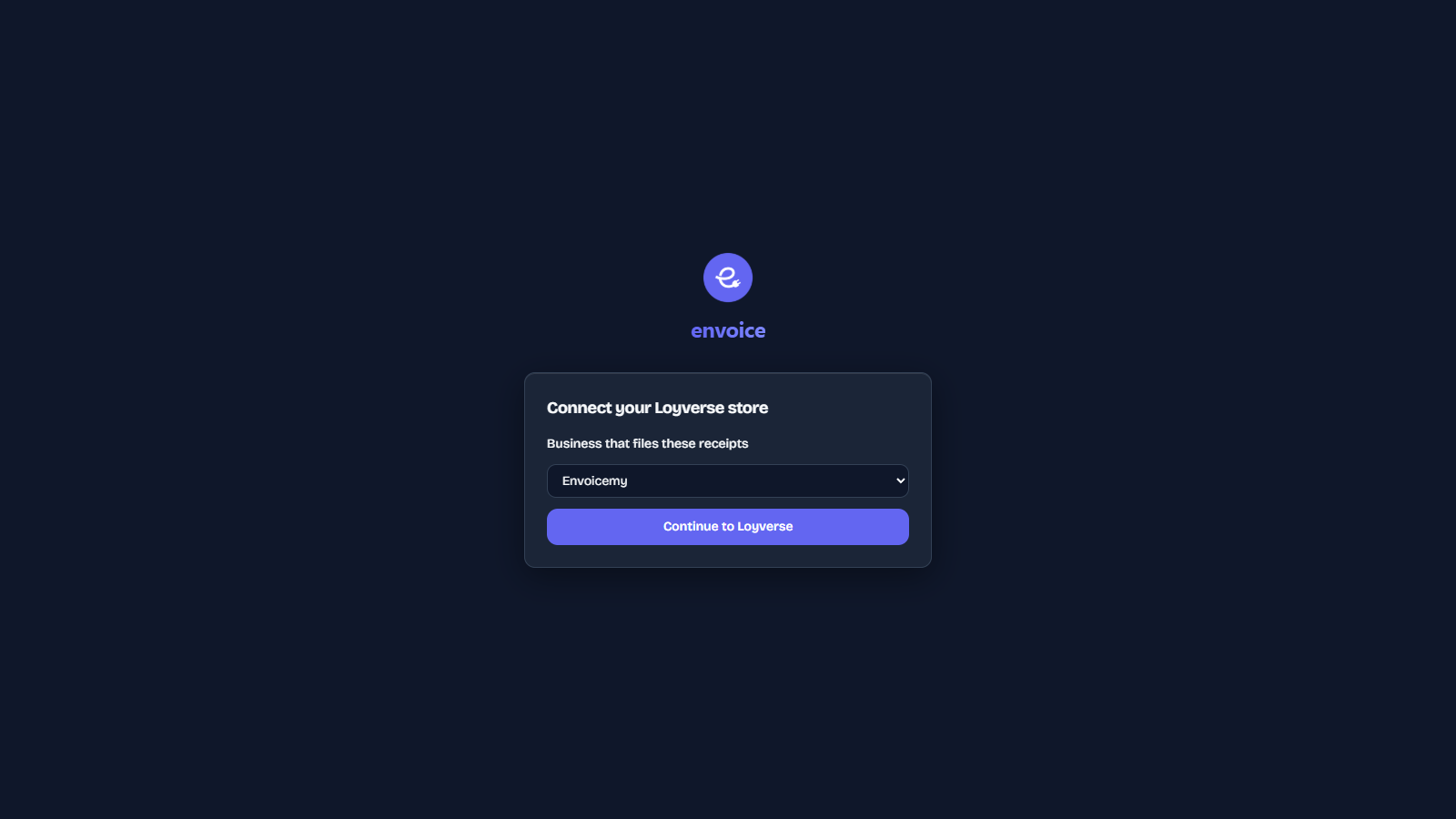
- Pick the business that files these receipts.
- Tick This is my own Loyverse account, then click Connect. Only tick it if the Loyverse account shown is yours: its receipts are filed to LHDN under the business you pick.
One envoice shop connects to one Loyverse account. If you run separate businesses with different TINs, give each its own envoice shop.
Connect early: Loyverse keeps 31 days for apps
On the Loyverse free plan, apps can only read the last 31 days of receipts. envoice picks up receipts from the 1st of the month you connect, so connect as early in the month as you can. Receipts older than 31 days can only be read if you pay Loyverse for unlimited sales history.
2. Match your Loyverse taxes
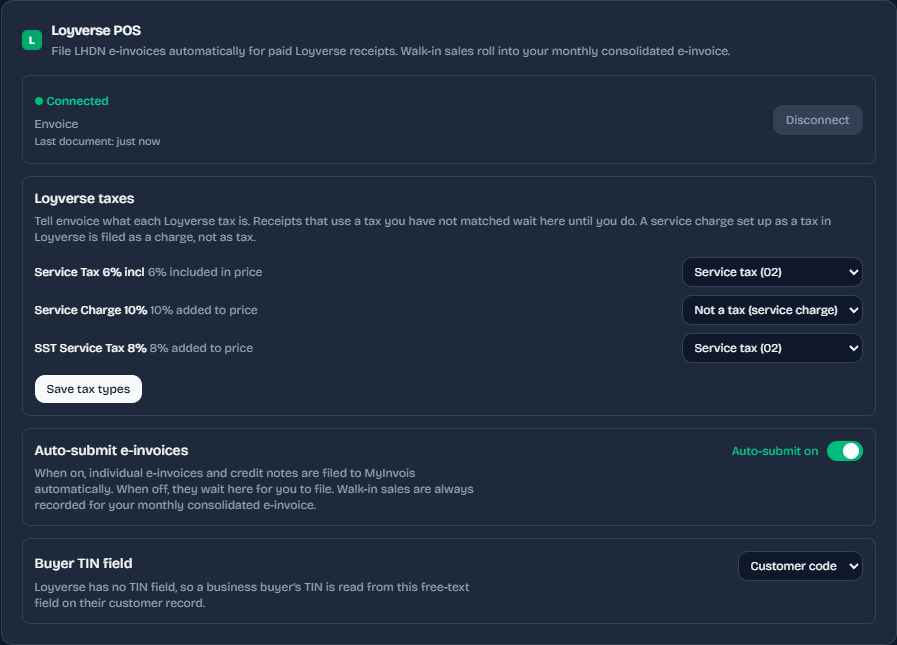
Loyverse lets you name taxes freely, so envoice asks what each one is. On the card, under Loyverse taxes, pick a type for every tax and click Save tax types:
- Service tax (02)
- Sales tax (01)
- Tourism tax (03)
- Not a tax (service charge): a service charge set up as a tax in Loyverse is filed as a charge, not as tax.
A receipt that uses a tax you have not matched waits on the card. Saving the tax types puts those receipts back in the queue, and they file within a few minutes. Receipts without any tax need no mapping.
3. Choose the buyer TIN field
Under Buyer TIN field, pick Customer code or Note: the Loyverse customer field where you type business buyers' TINs. A business buyer with a TIN but no registration number anywhere waits on the card, because LHDN checks the TIN and BRN together. Add the BRN after the TIN in Loyverse, or save that customer (with the same TIN) in envoice, then click Try again now.
4. Choose auto-submit
The Auto-submit e-invoices switch on the card:
- On: individual e-invoices and credit notes are filed to MyInvois automatically.
- Off: they wait on the card ("receipts are waiting for you to file them") until you click File them now.
Walk-in sales are always recorded for the monthly consolidated e-invoice, whichever way the switch is set.
Refunds and cancelled receipts
| In Loyverse | What envoice does |
|---|---|
| Refund of a business buyer's receipt | Files a credit note against its e-invoice, once that e-invoice is validated |
| Refund of a walk-in sale, same month | Takes the refund off the walk-in sale before the monthly consolidated e-invoice is filed |
| Refund of a walk-in sale already in a consolidated e-invoice | Files a credit note against the consolidated e-invoice |
| Refund of a receipt that is still waiting (for example for a tax mapping) | Waits, and files as soon as the original receipt is filed |
| Cancelled walk-in sale, same month | Removes it from the monthly consolidated e-invoice |
| Cancelled walk-in sale already in a consolidated e-invoice | Files a credit note against the consolidated e-invoice |
| Cancelled receipt that already has its own e-invoice | Shows on the card: cancel the e-invoice in envoice within 72 hours, or issue a credit note |
Receipts that need attention
When a receipt cannot be filed, the card lists it by its Loyverse receipt number with the reason, for example an unmatched tax, a missing BRN or your plan limit. Fix the cause, then click Try again now.
If LHDN rejects a document after it was filed, the receipt is listed too, with Open document. Open it to see LHDN's reason. envoice does not refile it by itself.
Instant sync
envoice also checks Loyverse every few minutes. If the card shows Turn on instant sync, click it so receipts arrive as they happen.
Disconnect
Click Disconnect on the card and confirm. Paid receipts are no longer filed until you reconnect. Documents already filed stay in envoice and at LHDN.