Connect envoice to an AI assistant (MCP)
Audience: Shop owner, Developer Time: 3 minutes
envoice has an MCP server, the standard way AI assistants such as Claude connect to outside tools. Once connected, you can ask your assistant things like "which invoices did LHDN reject this week?" or "file a credit note for invoice 1042", and it uses envoice to do it. MCP access needs the Pro or Enterprise plan.
Find the server URL
Open Settings > API Keys and scroll to MCP Connector. The Server URL is https://envoice.my/api/mcp. Click Copy.
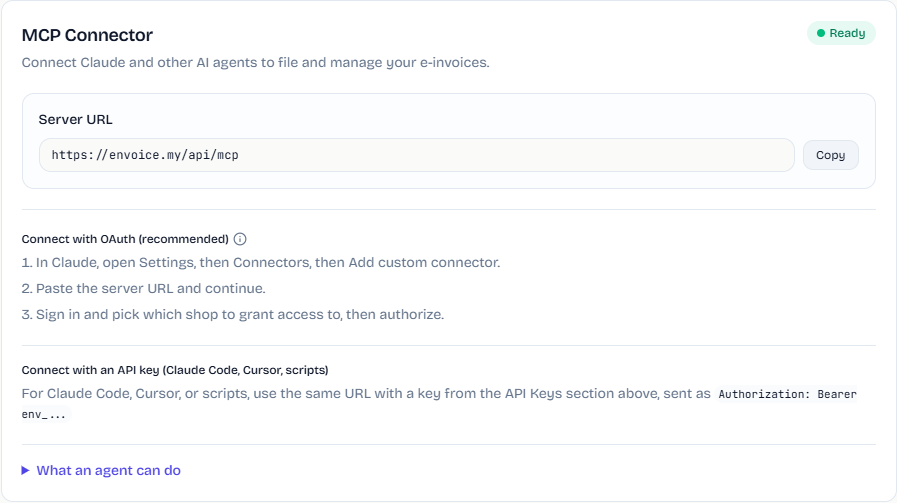
Option 1: Connect with OAuth (recommended)
Use this for Claude on the web or desktop.
- In Claude, open Settings, then Connectors, then Add custom connector.
- Paste the server URL and continue.
- A Connect envoice window opens. Sign in, pick which shop to grant access to, then authorize.
Access is limited to the shop you pick, and never more than an API key for that shop could do.
Option 2: Connect with an API key
Use this for Claude Code, Cursor or your own scripts.
- Create a key in the API Keys section on the same tab. See API keys and webhooks.
- In your client, add an MCP server with the URL
https://envoice.my/api/mcpand the headerAuthorization: Bearer env_...(your key).
What an agent can do
Read (cannot change anything):
- Invoices and their LHDN status
- Consolidated B2C filings
- Shop profile and plan usage
- Catalog products
- TIN validation
- Refresh an invoice's LHDN status
Write (creates real LHDN documents when the shop files to production):
- Create and submit e-invoices
- Create consolidated B2C filings
- File credit notes
- Cancel an e-invoice within the 72-hour window
An agent only ever gets what your plan and API access allow, scoped to one shop.
Write actions file real documents with LHDN when the shop is live. Try it first on a shop that uses the internal test mock. See Sandbox vs production.
Disconnect
Remove the connector in your AI client. If you connected with an API key, also revoke the key in Settings > API Keys.