Connect Xero
Audience: Shop owner (Admin), Accountant Time: 5 minutes
If you invoice from Xero, connect your Xero organisation to an envoice shop. envoice picks up approved Xero invoices and files them to LHDN, automatically or when you click submit. You connect from inside envoice; there is nothing to install in Xero.
1. Connect your Xero organisation
- In envoice, open Settings > Integrations and find the Xero card ("File LHDN e-invoices automatically for approved invoices in your own Xero organisation").
- Click Connect Xero.
- Xero asks you to sign in and choose the organisation to share with envoice. Approve the access.
- You return to envoice and the card shows Connected.
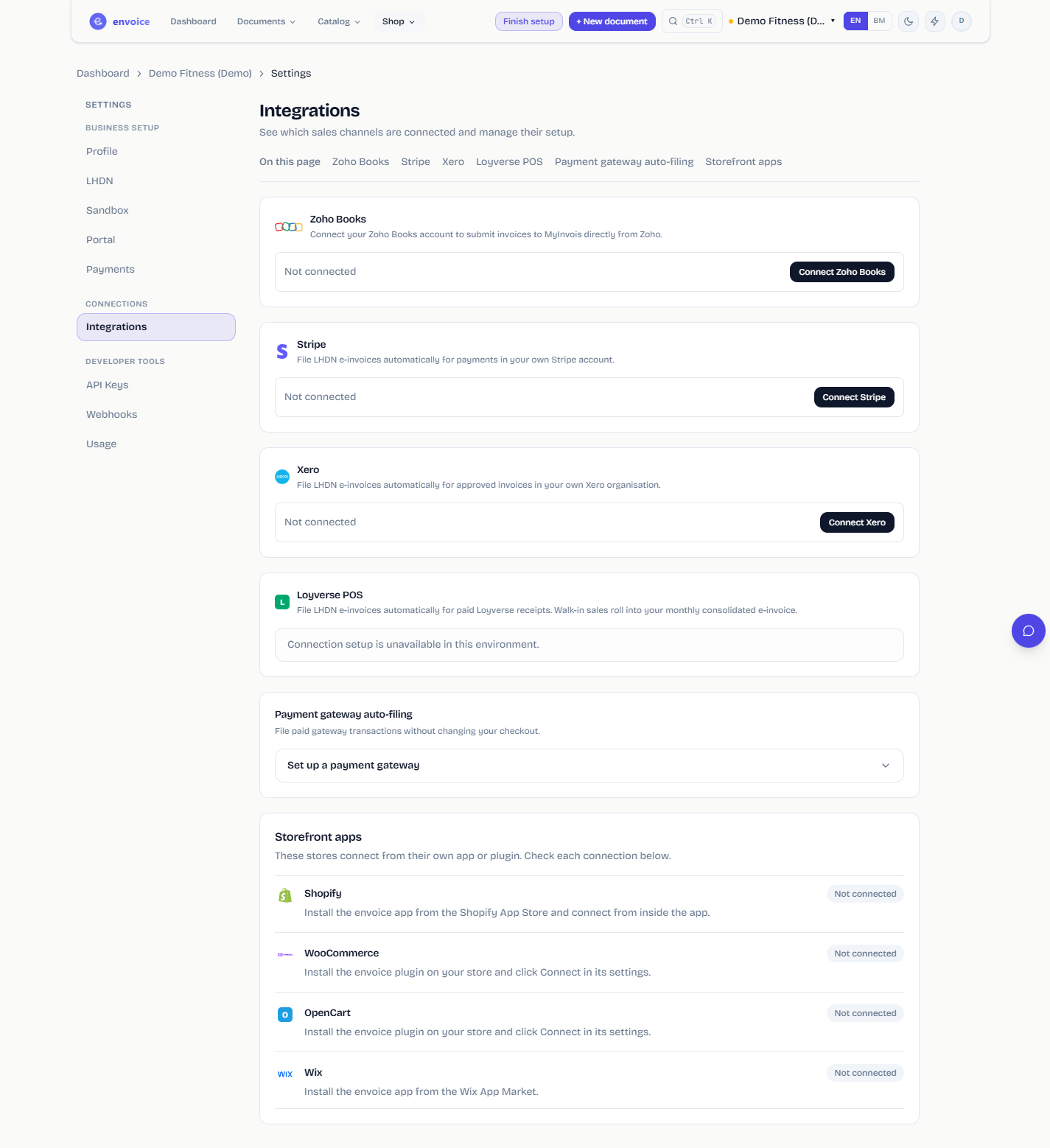
Connect one Xero organisation per envoice shop. Each shop needs its own LHDN credentials; see Start in the demo shop and go live.
2. Choose auto-submit
On the Xero card, the Auto-submit e-invoices switch decides what happens when you approve an invoice in Xero:
- Auto-submit on: an approved Xero invoice is filed to MyInvois automatically.
- Auto-submit off: invoices wait for you to review and submit each one.
3. Manage your Xero invoices
Click Manage invoices on the card to open Xero invoices.
- The tiles at the top show your Business, the Mode (Sandbox or Production), Invoices submitted and Pending.
- Needs attention counts invoices (and bills) that are not filed or failed. Click Review to see them. When nothing is waiting it says All caught up.
- The list has tabs for All, Not filed, Validated, Pending, Consolidation and Failed, and a search box for the invoice number or buyer.
On each invoice:
- Submit e-Invoice files it. Once LHDN accepts it the row shows Validated and View QR.
- Retry submission appears after a failure.
- Under More actions, Record for consolidation adds a general public invoice to your monthly consolidated e-invoice instead.
- For a buyer without a TIN in Xero, enter the ID value, click Verify TIN, then Save TIN or Submit with buyer.
An invoice still in draft shows Not approved in Xero yet. Approve it in Xero first.
Xero credit notes against a validated invoice file as LHDN credit notes. Managing e-invoices needs the owner or accountant role in the envoice shop.
Disconnect
Click Disconnect on the Xero card. Approved invoices are no longer filed until you reconnect. Filed e-invoices stay in envoice.