e-Invoice credit note, debit note and refund note in Malaysia: which one to issue
Updated 12 November 2026
Short answer
You cannot edit an e-invoice once LHDN validates it. Within 72 hours of validation you can cancel it with a reason; at any time you can issue a credit note to reduce its value, a debit note to add charges, or a refund note to record money paid back to the buyer.
A validated e-invoice cannot be edited
LHDN does not let you change an e-invoice after it is validated. You either cancel it inside the 72-hour window and issue a new one, or you leave it standing and issue a note that adjusts it. Each note is an e-invoice in its own right, with its own type code, and it carries LHDN's unique identifier (UUID) of the original in the Original e-Invoice Reference Number field. See the e-invoice fields for where that sits.
What each note does
| Note | Code | Use it when | Example |
|---|---|---|---|
| Credit note | 02 | You reduce the value of an invoice and no money goes back to the buyer | A discount after the sale, a price charged too high, goods returned against an unpaid balance |
| Debit note | 03 | You add charges to an invoice you already issued | A fee you forgot to bill, extra work the customer asked for |
| Refund note | 04 | You return money the buyer already paid | A paid order returned and the money given back |
The line between a credit note and a refund note is whether money moves. LHDN's own example: a supplier sells 200 chairs for RM2,000 and is paid. The buyer returns 8 faulty chairs and gets RM80 back, so the supplier issues a refund note for RM80. Had the supplier only reduced an unpaid balance, a credit note would fit. Self-billed e-invoices have matching notes too: codes 12, 13 and 14.
How envoice files refunds
Refunds that come in from a connected store, POS or payment link, such as Shopify, Loyverse, SalesPlay or Stripe, are filed as credit notes against the original e-invoice, one for each refund. envoice does not turn them into refund notes. If you want a refund note for a particular refund, issue it yourself from the envoice dashboard: open the validated invoice, click Issue adjustment note and pick Refund note (record refund). Check with your tax agent which note suits your books.
Cancel or issue a note?
The supplier can cancel a validated e-invoice within 72 hours of validation, with a reason, and the buyer is notified. A buyer who spots an error can ask for a rejection in the same 72 hours; if you agree, you cancel it, and if you do not, it stands. After 72 hours there is no cancelling, only notes. LHDN also lets you use a note inside the 72 hours if you prefer, and sets no deadline for issuing one.
| Situation | What to do |
|---|---|
| Mistake found within 72 hours of validation | Cancel with a reason, then issue a corrected e-invoice. A note also works. |
| Buyer asks you to reject it within 72 hours | Cancel it if you agree. If you do not cancel, it stands. |
| Price too high, discount given, or goods returned with no money paid back | Credit note |
| Undercharged, or a fee was missed | Debit note |
| Money paid back to the buyer | Refund note, or a credit note against the original. envoice files store and POS refunds as credit notes. |
| Wrong buyer or wrong items, found after 72 hours | Credit note for the full amount to reverse it, then a new e-invoice with the correct details |
| LHDN rejected the document | Nothing to cancel, because it was never validated. Fix it and submit again. |
| A consolidated sale not filed yet | Nothing has gone to LHDN. In envoice, use <strong>Void document</strong> to take it out of the monthly pool. |
Do not mix this up with the other 72-hour rule: an e-invoice cannot be submitted with an issue date more than 72 hours old. envoice files every document with the time it is submitted, so an old sale is not rejected for its date. Fixing many old e-invoices under LHDN's penalty-free programme follows the same credit note and new e-invoice route; see PKPS catch-up.
Notes and the consolidated e-invoice
LHDN's FAQ says a note can adjust a consolidated e-invoice too, and one note can adjust several original e-invoices, as long as each original's UUID is listed. In envoice, a sale with no buyer TIN has no e-invoice of its own, so you cannot issue a note against it from the sale. When a buyer later asks for an individual e-invoice for a sale already inside a validated consolidated e-invoice, envoice files a credit note against the consolidated e-invoice and issues the buyer's own e-invoice, so the sale is not reported twice. See consolidated or individual.
How to issue a note in envoice
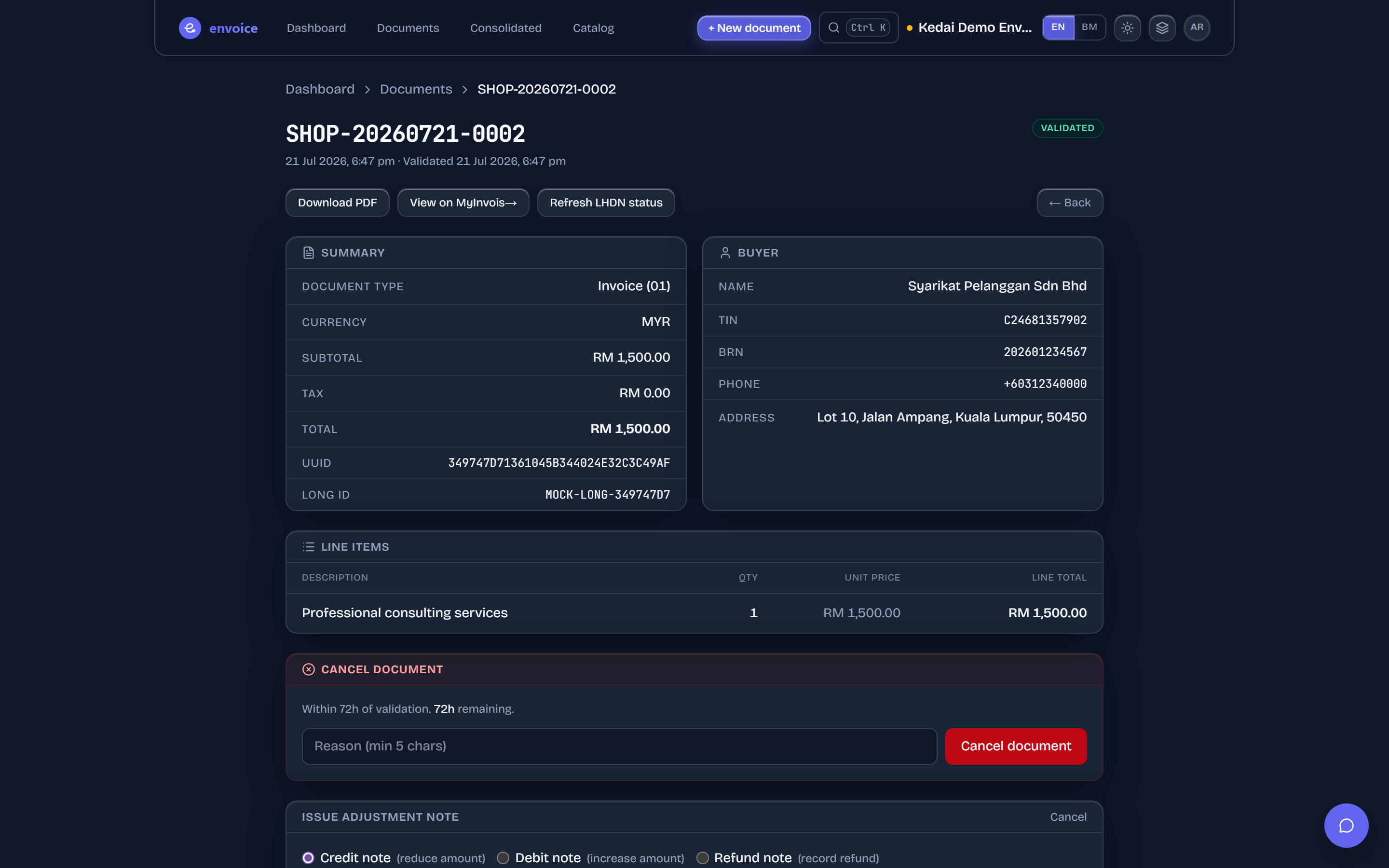
- Go to Documents and open the validated invoice. It must have a buyer TIN: a General Public sale cannot be adjusted on its own.
- Click Issue adjustment note and pick Credit note, Debit note or Refund note.
- Enter a Description of why you are adjusting and the Amount as a positive number. The note type sets the direction. Leave the tax type and rate as they are unless the adjustment carries SST.
- Click Submit credit note to LHDN (or debit or refund). envoice links the note to the original invoice's number and UUID, submits it, and lists it in Documents as its own document.
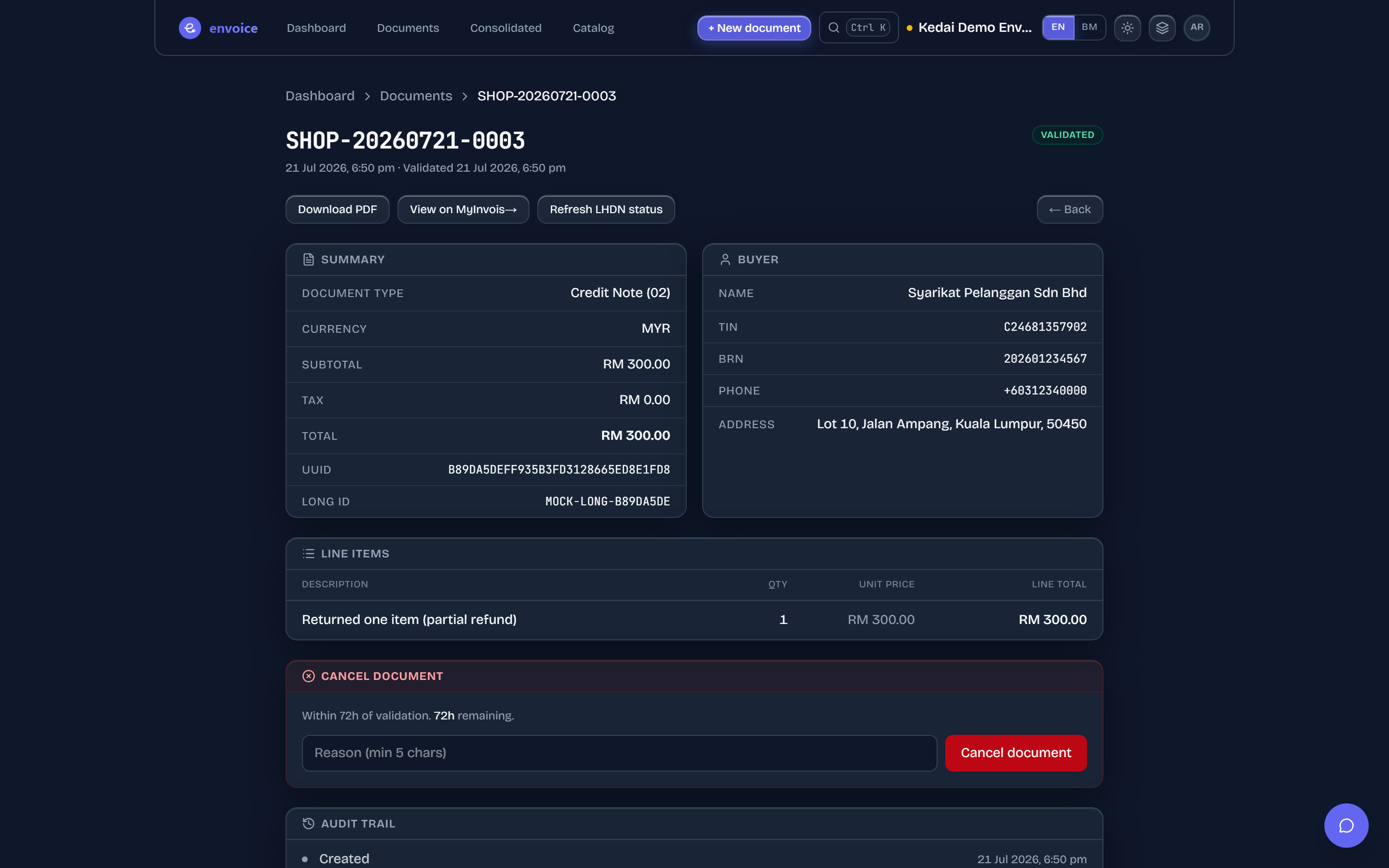
- Refund notes follow the same steps and link to the original invoice the same way. envoice stops a refund that is more than the sale.
- Self-billed originals get the self-billed note (12, 13 or 14) automatically.
- An original filed outside envoice: on the New invoice form, open Invoice options, tick Original not in envoice, pick the note type and enter the Original LHDN UUID, Original invoice number and Original issue date. envoice checks them with LHDN before filing.
- To cancel instead: inside the 72 hours the invoice shows a Cancel document panel with the hours left. Enter a reason of at least 5 characters and click Cancel document. Only Owner and Accountant roles can cancel.
A separate number series for notes
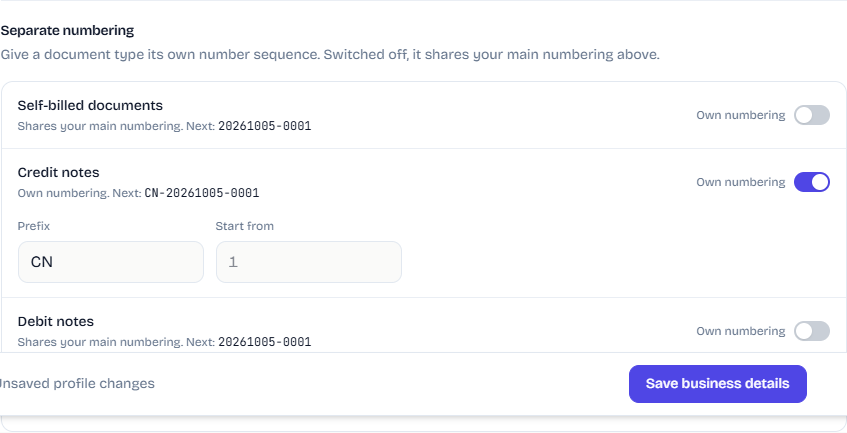
By default notes share your invoice numbering. If your accountant wants credit notes as CN-0001, CN-0002 and so on, open Settings > Profile, click More settings, and under Separate numbering switch on Own numbering for credit, debit or refund notes with a prefix of 2 to 8 letters or digits. Click Save business details.
Credit, debit and refund notes are included on every plan, Free included. See pricing and the credit and debit notes guide.
Frequently asked questions
What is the difference between a credit note and a refund note?
A credit note reduces the value of an e-invoice when no money goes back to the buyer, for example a discount or a reduced unpaid balance. A refund note records money you actually paid back to the buyer.
Does envoice file a refund note when a Shopify or POS sale is refunded?
No. Refunds from connected stores, POS systems and payment links are filed as credit notes against the original e-invoice. You can still issue a refund note yourself from the dashboard with Issue adjustment note, then Refund note (record refund).
Can I edit an e-invoice after LHDN validates it?
No. Within 72 hours of validation you can cancel it with a reason and issue a new one. After that, or if you prefer, you adjust it with a credit, debit or refund note.
Is there a deadline to issue a credit note on an e-invoice?
LHDN sets no time limit for credit, debit or refund notes. Only cancellation has a limit: 72 hours from validation.
Can I issue a credit note against a consolidated e-invoice?
LHDN's FAQ says notes can adjust consolidated e-invoices. In envoice this happens when a buyer asks for an individual e-invoice for a sale already in a validated consolidated e-invoice: envoice files a credit note against the consolidated e-invoice and issues the buyer's own e-invoice.
Do credit notes cost extra in envoice?
No. Credit, debit and refund notes are included on every plan, Free included.