SQL Account e-invoice: upload your SQL Account sales to LHDN with envoice
Updated 12 November 2026
Short answer
Put your sales in SQL Account's Excel import layout, the "Sales & Purchase" sheet with columns like DocDate, DocNo(20), CompanyName(100), TIN(14), Description_DTL(200), Qty, UnitPrice and Tax(10), and upload it in envoice under Documents, Upload CSV. envoice detects the layout, converts SQL tax codes and tax-inclusive prices, and files the e-invoices to MyInvois.
Step 1: get your sales into SQL Account's Excel layout
- Download Estream's example Excel import workbook from the SQL Account docs and open the Sales & Purchase sheet.
- Fill or paste one row per invoice line: date, document number, customer code and name, address, TIN, ID type and number, then the item description, quantity, unit price, discount, tax code and amount.
- Save it as .xlsx or .csv. The column names can keep their bracketed lengths, like DocNo(20), or drop them.
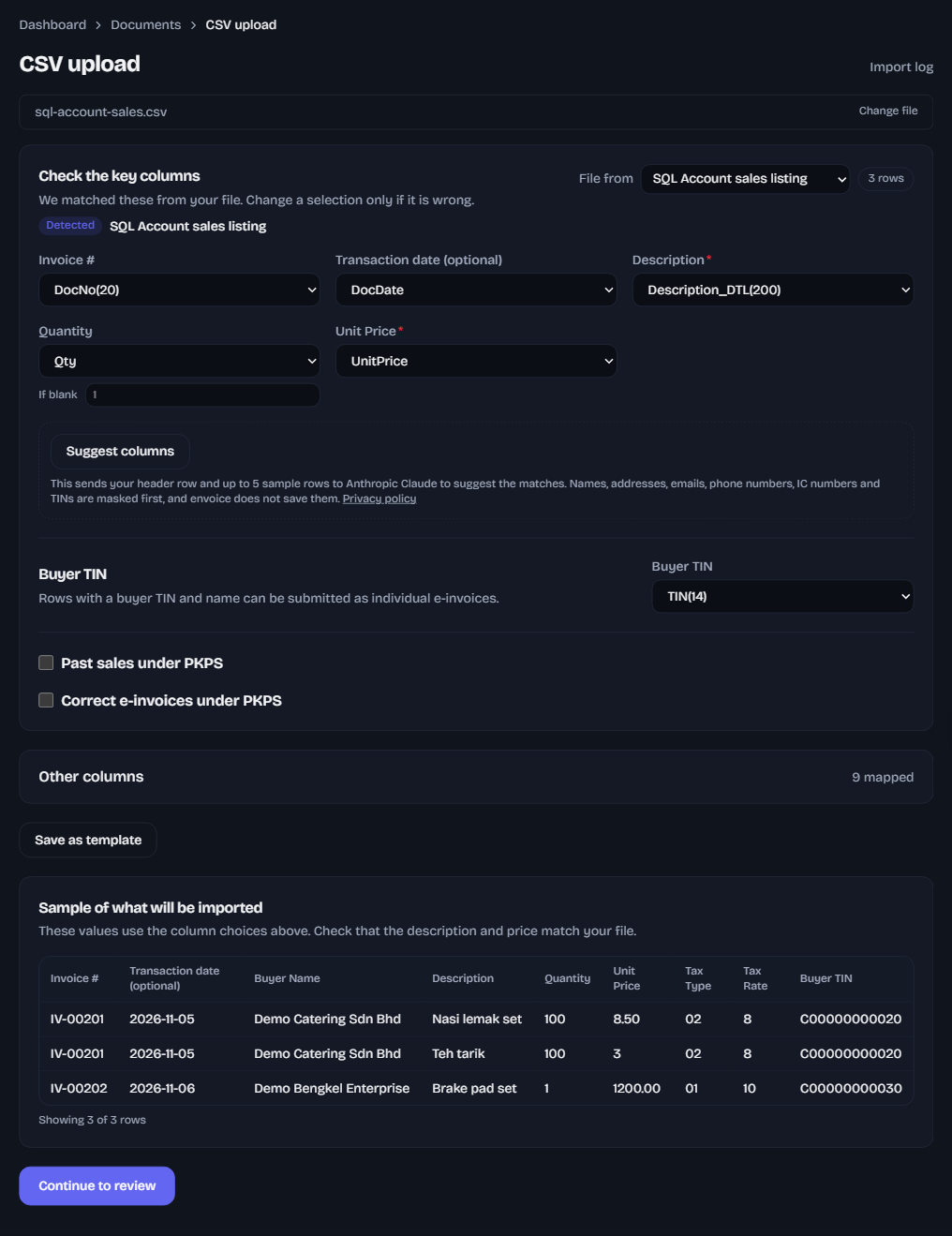
Exported a Sales Document Listing from SQL Account instead? Its columns may be named differently. Upload it, pick SQL Account sales listing under File from, and check each column before you submit.
Step 2: upload it to envoice
- Sign in to envoice and open Documents, then Upload CSV.
- Choose the file you exported. Excel (.xlsx) and CSV both work, up to 20,000 rows and 5 MB.
- envoice reads the header row and shows Detected: SQL Account sales listing, with the columns already picked.
- Check the sample at the bottom: invoice number, date, description, quantity, unit price, tax type and rate. Change any column that looks wrong.
- Click Continue to review. envoice lists any row it will skip and every field to fix in it.
- Click Submit all rows. Sales with a buyer TIN file as their own e-invoices; sales without one wait for your monthly consolidated e-invoice.
What envoice reads from a SQL Account file
| In your file | What envoice files |
|---|---|
| DocNo(20), DocDate | e-Invoice number and sale date (dd/mm/yyyy) |
| CompanyName(100), ADDRESS1 to ADDRESS4, POSTCODE, CITY, STATE | Buyer name and address, the four address lines joined |
| TIN(14), IDTYPE, IDNO(20) | Buyer TIN and ID. IDTYPE 1 or 5 is BRN, 2 NRIC, 3 passport, 4 army. |
| Description_DTL(200), Qty, UnitPrice | Line description, quantity and unit price |
| TaxInclusive = 1 | Unit price turned into the price before tax |
| Tax(10) ST, ST5 | Sales tax at 10% or 5% |
| Tax(10) SV, SV8 | Service tax. A rate in the code wins; otherwise TaxAmt gives it, or 6% for SV. |
| Tax(10) STE, SE, SVE and other exempt codes | Tax exempt (E) |
| IRBM_CLASSIFICATION(3) | LHDN classification code, as it is |
A line with a value in DISC(20) uses Amount divided by Qty, so the e-invoice matches the discounted line. envoice works out the tax and totals again from each line.
Frequently asked questions
Can I upload the same file I use for SQL Account's Excel import?
Yes. envoice reads the Sales & Purchase layout from Estream's example workbook, including the IRBM_CLASSIFICATION, TIN, IDTYPE and IDNO columns, and ignores columns it does not need, like Agent or Project.
How does envoice treat SQL's TaxInclusive column?
When TaxInclusive is 1 and the line has sales or service tax, envoice divides the unit price by one plus the tax rate, so the e-invoice shows the price before tax and the same total.
Does envoice change anything in my accounting software?
No. envoice only reads the file you upload. Your accounting records stay as they are, and envoice keeps the LHDN UUID and validation link for each e-invoice it files.
What if a column is picked wrongly?
Every column stays in a dropdown you can change before you submit, and you can save your choices as a template for next month. The sample at the bottom updates as you change them.